- JPG or PNG under 8 MB for a profile; PNG or JPEG, 3 MB for a Page.
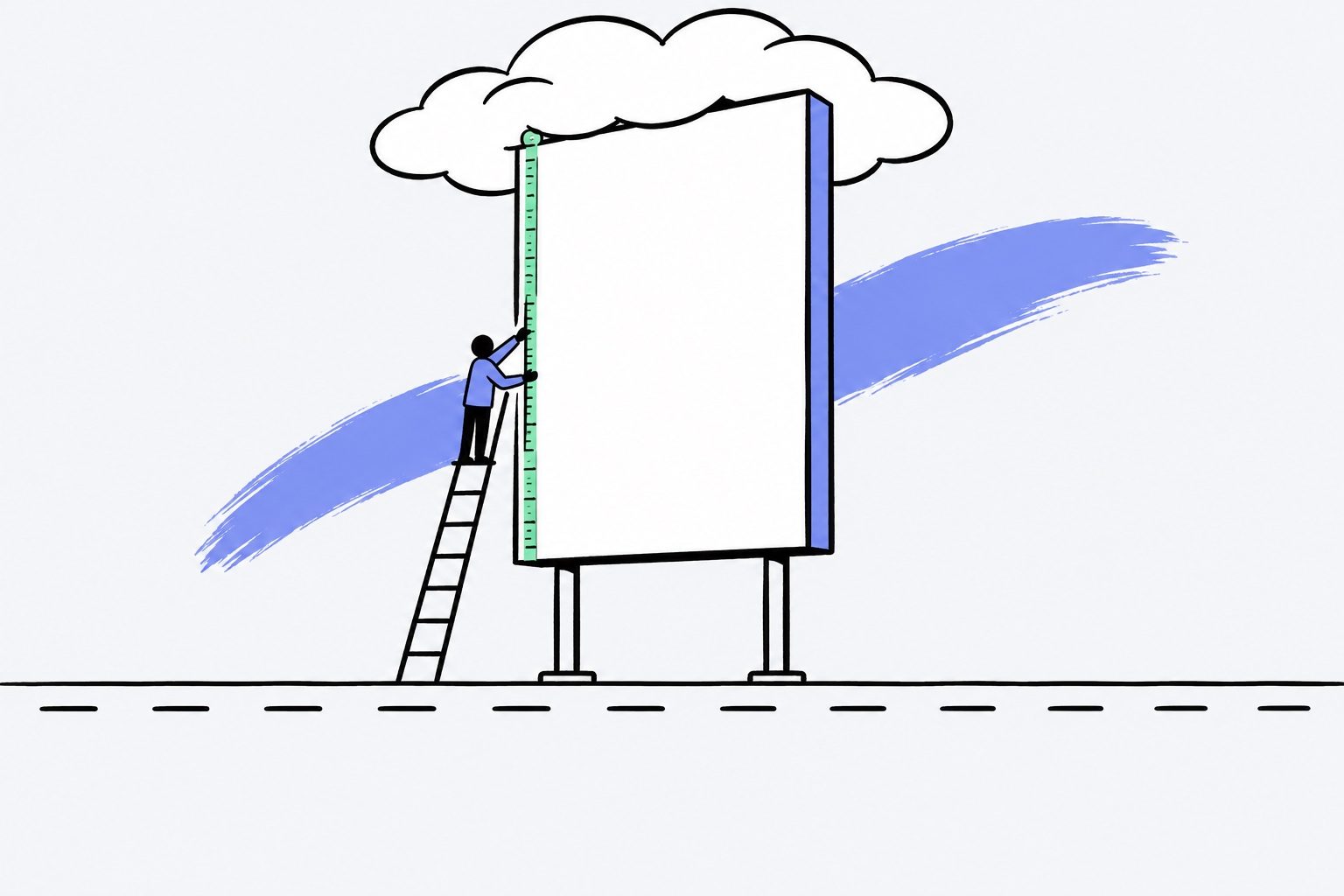
- A Page cover may be trimmed to fit the screen, and a profile banner sits behind your photo: keep what matters in the middle band, with one side left quiet.
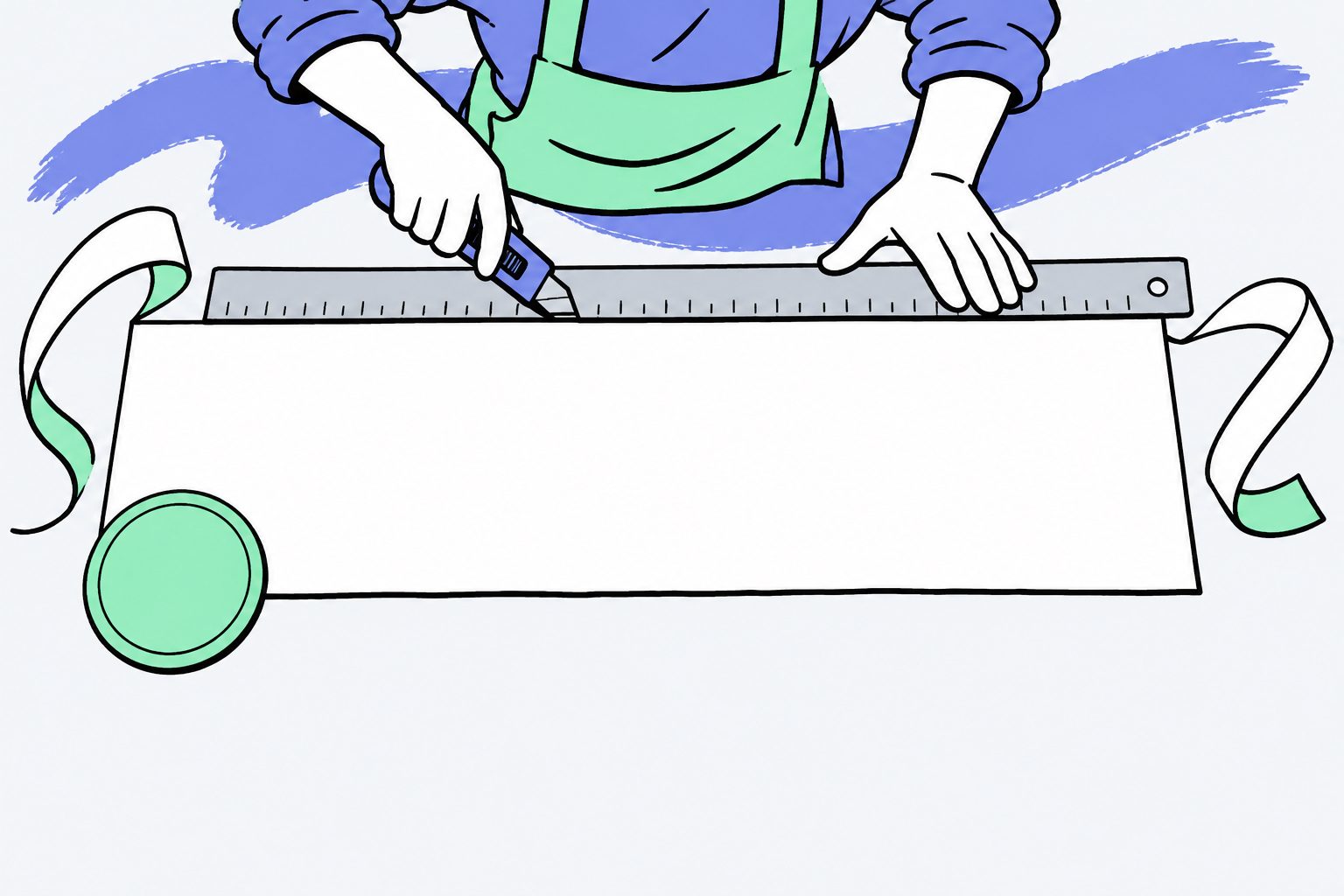
- Niki paints the wide scene, you cut it to a 4:1 strip, and the Edit cover image window on LinkedIn finishes the fit.
Grace, a nurse in Ohio, finishes a night shift and refreshes her profile before bed. Her banner is still the one LinkedIn put there, and it says nothing about her job. The exact pixels are below, with a way to get a banner that fits.
The exact LinkedIn banner size for each cover
Two sizes rule daily use: the banner of a personal profile and the cover of a Page. LinkedIn fixes two more for event pages and newsletter articles, and they follow other ratios.
| Cover | Size in pixels | File |
|---|---|---|
| Personal profile banner | 1,584 x 396 recommended | JPG or PNG, under 8 MB |
| LinkedIn Page cover | 1,512 x 256 | PNG or JPEG, 3 MB max |
| Event cover | 480 wide minimum, 16:9 | Not stated |
| Newsletter article cover | 1,920 x 1,080 recommended | Not stated |
What LinkedIn crops, and where your photo sits
For a Page cover, LinkedIn says the picture “might be adjusted to fit the screen, which might trim the image horizontally or vertically”, and it asks Pages to keep key details, especially in the lower-right corner, away from the edges, because “placing important information in the center ensures that it is always visible”.
On a personal profile, the cover sits behind your photo in the introduction section, so part of the scene always stays hidden. How the image appears also changes with the size of the browser window and the screen resolution.
LinkedIn gives no safe zone in pixels, whether for a profile or for a Page, and it does not say how much ground the photo covers. Keeping what matters in the middle band, with one side left quiet, is our advice, not a LinkedIn rule. Look at your banner once on a phone, once on a computer, before you call it done. The rules for the photo itself live in our LinkedIn profile picture guide.
Four banner scenes, one for your job
The scenes come from the AI image generator on Nation AI, fed with one sentence; hand it a photo instead and it reworks that too. Copy a prompt below, click Landscape among the three format buttons in the chat before you send it, and the picture comes back wide, ready for the trim.
LinkedIn keeps a gallery of custom cover images of its own, open today to members in the USA. The four scenes below are written for a trade instead, and the first is Grace’s.
If your days look like Grace’s, send the first prompt as it stands.
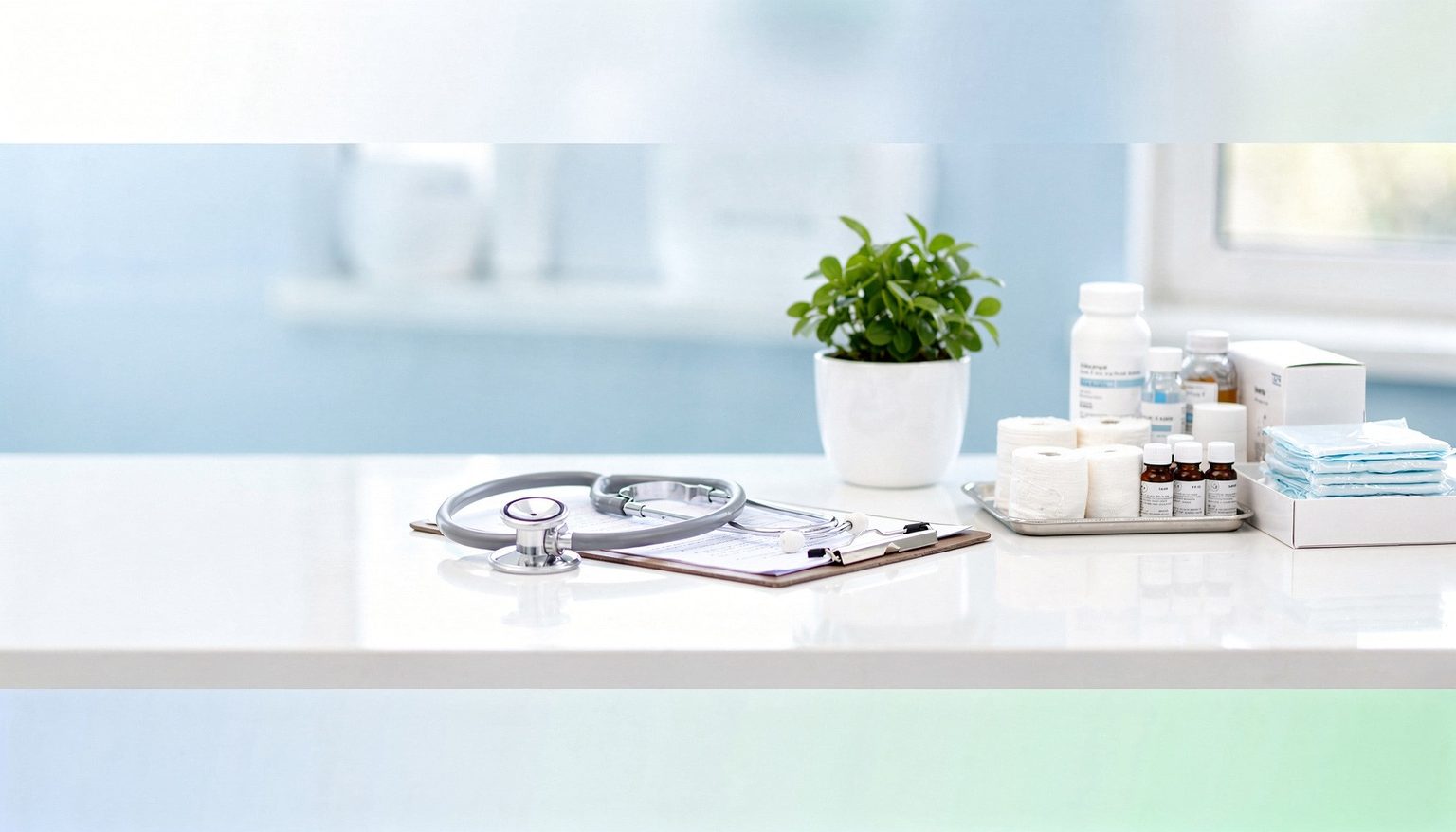
Nurse banner
Create a background banner for a nurse profile: in the wide middle band of the image, a bright clinic counter holds a stethoscope, a clipboard and a small green plant, with pale blue walls and soft daylight behind. The left side stays calm and mostly empty because the profile photo will cover it, and the right side comes alive with neatly arranged medical supplies. Top and bottom carry only soft color washes. No text, no letters, no logo.
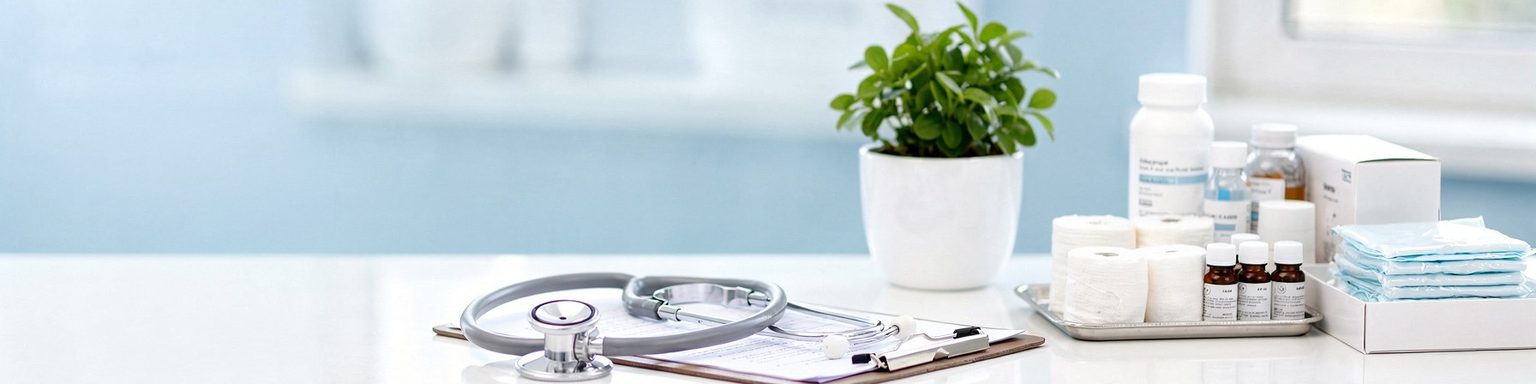
Analysts may want less daylight: the second prompt dims the room and lets two screens glow.
Data analyst banner
Create a background banner for a data analyst profile: in the wide middle band, a dark desk holds two softly glowing screens covered in abstract colorful shapes instead of readable charts, a notebook and a mug. The left third stays quiet and dark for the profile photo, while the right side warms up with a small desk lamp and a tidy stack of folders. Top and bottom fade into plain deep gradients. No text, no letters, no logo.
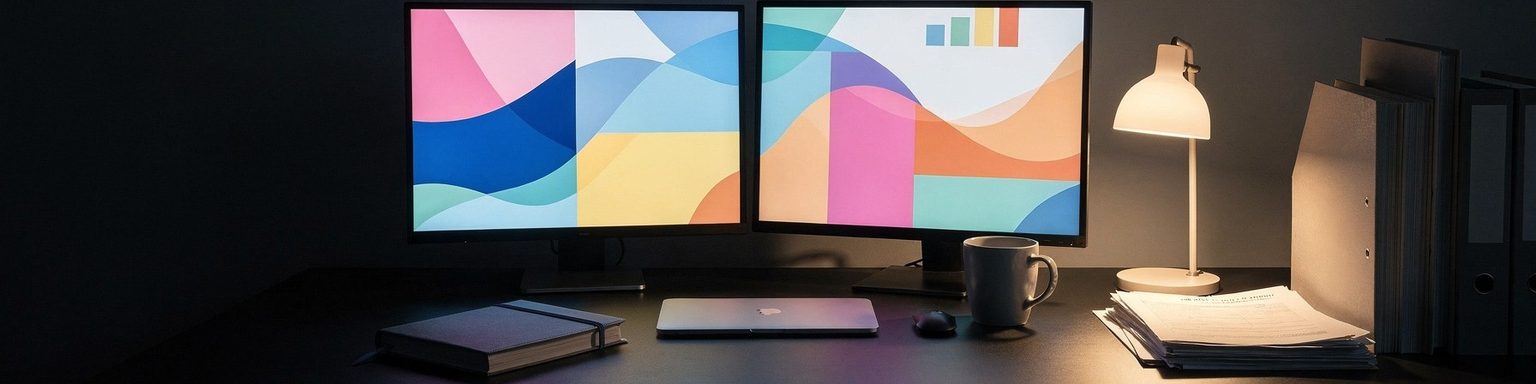
Showing homes for a living? The third prompt stages a living room, house keys waiting on the table.
Real estate banner
Create a background banner for a real estate agent profile: in the wide middle band, a bright staged living room with a linen sofa, tall windows and a bunch of house keys resting on a wooden table. The left side stays calm and lightly blurred for the profile photo, and the right side extends the room with a floor plant and wall art of pure shapes. Top and bottom carry soft cream tones. No text, no letters, no logo.
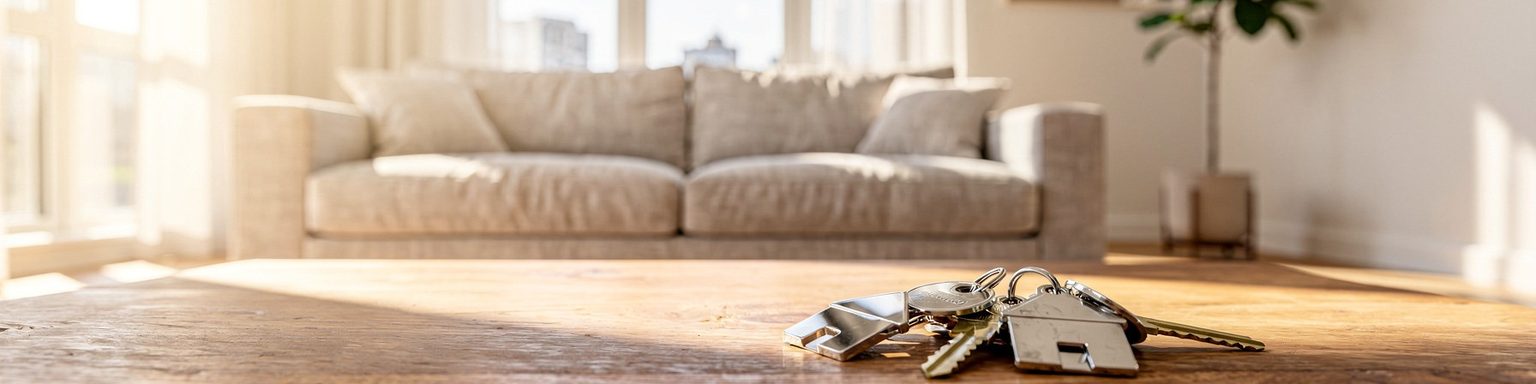
The last one serves a bakery, which usually lives on a Page. A Page cover is another shape, 1,512 x 256. Cut the same file for it and you keep about 303 rows instead of 448.
Bakery Page banner
Create the cover banner of a small bakery Page: in the wide middle band, wooden shelves loaded with crusty loaves and golden pastries, a flour-dusted counter and a warm glow from the oven behind. The left side stays calm with plain tiling for the profile photo, and the right side bustles with hanging utensils and baskets of baguettes. Top and bottom carry only warm wooden tones. No brand, no text, no letters anywhere.

How many rows the cut keeps
A landscape file from Niki measures 1,792 x 1,024 pixels, a 7:4 shape. Cut to a 4:1 strip at full width, it keeps 1,792 x 448, and the 576 other rows go. The strip runs about 13 percent wider and taller than the 1,584 x 396 frame, so LinkedIn shrinks it a touch and never stretches it. Every prompt above puts the scene in the middle band and leaves plain bands above and below, so the rows that go are those bands plus a thin slice of the scene’s own top and bottom, far from the action.
The same arithmetic rules big prints: our poster generator guide covers the pixels a print really needs.
Put the banner on your profile
From the prompt to the live page, five steps are enough.
-
Describe the scene in Niki
Write one sentence about your workplace, and pick the landscape format from the three on offer. It costs nothing to try, with no account to create, and a few messages are included.
-
Save the file the same day
The picture opens in high definition and stays online for 48 hours; save it on your device before it disappears.
-
Cut the middle band
Trim the file to 1,584 x 396 on your device, or send the whole picture and crop it inside LinkedIn.
-
Upload it from your profile
Click the camera icon on the upper-right corner of the introduction section, choose to upload a single photo, and the Edit cover image window opens: crop, adjust, change the position and size, or rotate the cover.
-
Look at it on both screens
Open your profile on a phone, then on a computer: the display shifts with the browser window and the screen, and the middle band must survive both.
Niki warns you
A cover can be taken down: it must comply with LinkedIn’s User Agreement and with its Professional Community Policies. That agreement asks you to post only content that does not violate the law or anyone’s rights, intellectual property included, so keep other people’s images and brands out of your scene.
Niki
AI image generator
“Tell me where you work and what surrounds you, and I lay the action in the middle band with quiet sides for your photo. If a detail lands where a screen or your photo will cut it, say the word and I move it.”
Frequently asked questions
Can I use a 1,920 x 1,080 picture as my banner?
Yes, after a cut. That is a 16:9 shape, and the profile frame is 4:1: filling the strip keeps fewer than half the rows, so more than half the picture disappears. A 1,584 x 396 file slides in without a cut.
How big is the banner in inches or centimeters?
LinkedIn gives pixels only, and no centimeter or millimeter figure exists anywhere in its help pages. The size you see also depends on the display.
Can the banner be a slideshow?
Yes, with a paid plan: a cover slideshow takes up to five images, while free members upload a single cover image.
Why does my banner look blurry?
LinkedIn advises picking an image with a heavier file, and it says photos look better than images with logos.
Your banner can show your work by tonight.
Describe your workplace to Niki, save the wide file, cut the strip, and put it up.
Sources
- “Add or change the cover image on your profile”, LinkedIn Help.
- “Image specifications for your LinkedIn Pages and Career Pages”, LinkedIn Help.
- “Enhance your profile cover image with a slideshow”, LinkedIn Help.
- “Profile photo guidelines and conditions”, LinkedIn Help.
- “Custom cover image”, LinkedIn Help.
- “Make the most of your LinkedIn Events”, LinkedIn Help.
- “LinkedIn Newsletters best practices”, LinkedIn Help.
- User Agreement, LinkedIn, effective on November 3, 2025.