- For TV screens above all, the recommended size is 2,560 x 1,440 pixels.
- Text and logos belong in a safe area of 1,235 x 338 pixels.
- A landscape Niki picture falls just short: 16 rows cut and one resize clear the minimum.
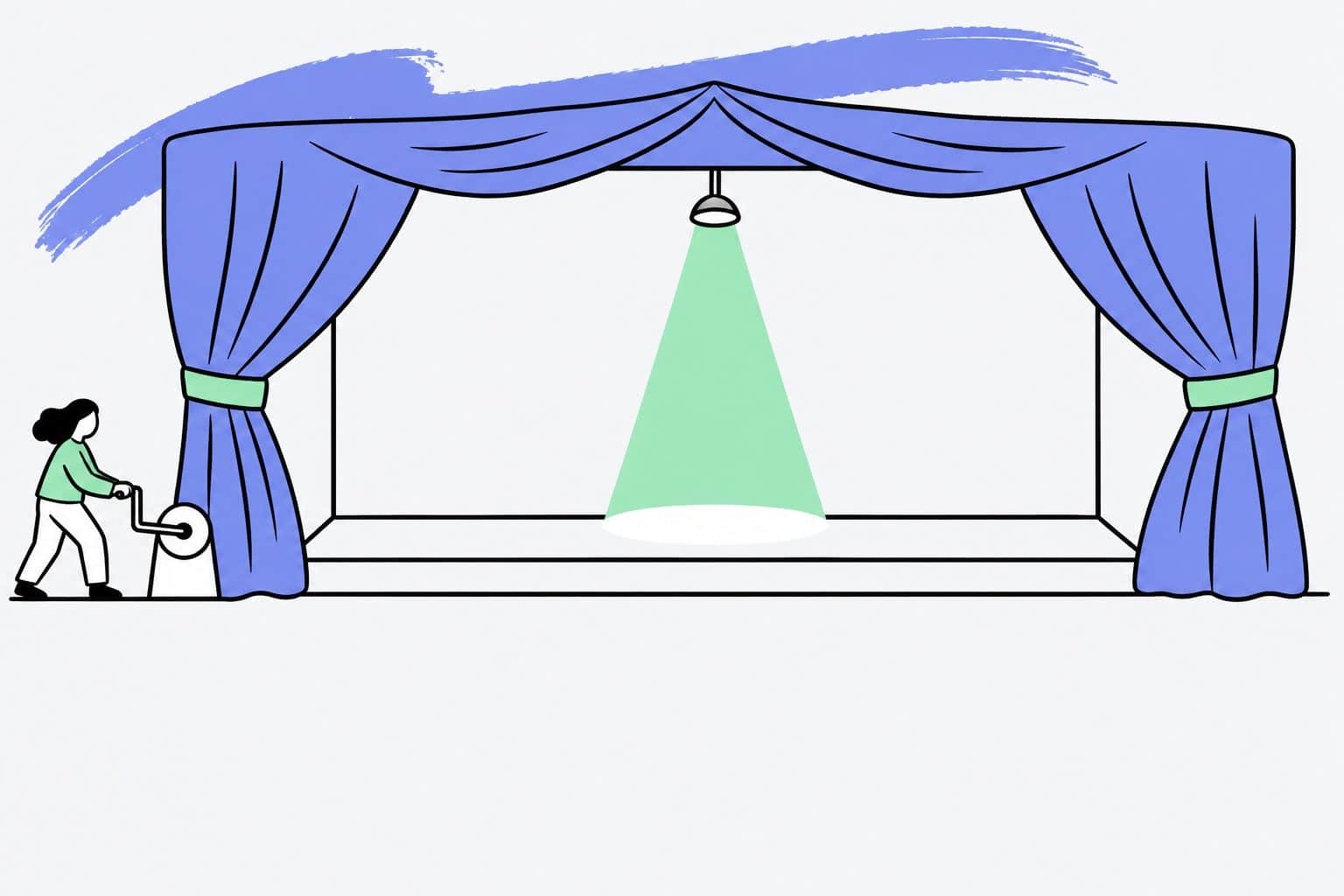
Think of your banner as a wide stage. YouTube holds a protected band, roughly 60 percent of the banner’s width and just 29 percent of its height; the rest is scenery, and some views and devices will crop it. The figures follow, with a way to build a picture that keeps what matters.
First, the strip that survives every screen
17.7%
At the minimum size, the band for text and logos covers 17.7% of the surface.
YouTube Help
YouTube is blunt: “The same banner image is used across computer, mobile, and TV displays, but it shows differently depending on your device.” Images “should accommodate the entire screen for larger devices,” and certain views crop them. One safe area, at one size: no figure per device, no position.
Where the band sits, the guidelines do not say; our advice is to keep name and logo in the middle of the picture.
The YouTube banner size rules, gathered in one table
Everything YouTube fixes for the banner and the watermark sits below.
| Element | Official values |
|---|---|
| Banner, minimum to upload | 2,048 x 1,152 pixels at 16:9 |
| Banner, recommended | 2,560 x 1,440 pixels, above all for TV |
| Banner, file weight | 6 MB maximum |
| Safe area, text and logos | 1,235 x 338 pixels at the minimum size |
| Profile picture | Renders at 98 x 98 pixels, file up to 15 MB |
| Video watermark | 150 x 150 pixels minimum, square, under 1 MB |
Its own examples of embellishments to avoid: shadows, borders and frames.
Pick your channel, copy its banner prompt
Each scene below starts as a prompt for our AI image generator, with one object parked in the protected band. Our placement advice: your channel name goes right next to that object.
First, a woodworking channel: the half-carved bowl takes the center, chisels lined up before it.
Woodworking banner
Create a banner for a woodworking channel: in the center, a worn workbench holds a half-carved walnut bowl, chisels laid in a row and soft curls of shavings. The scene continues to every edge: stacked lumber along the workshop wall, tool silhouettes fading into warm shadows on the sides, golden light through a dusty window. It should hold up well blown up on a TV screen. No text, no letters, no logo.

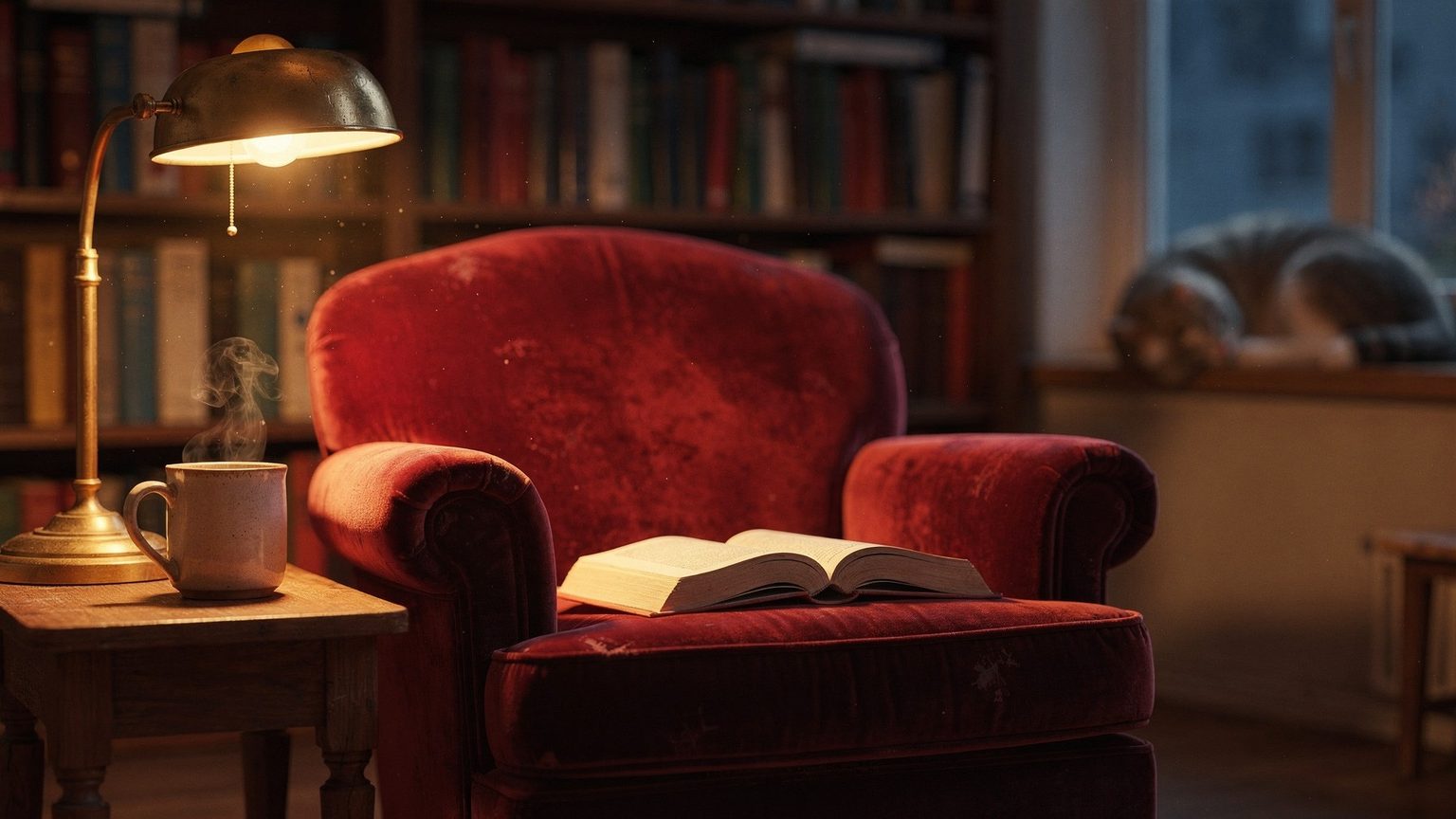
Second, a book review channel: the open book resting on the armchair marks the spot.
Book reviews banner
Create a banner for a book review channel: in the center, a velvet armchair holds an open book face down, beside a steaming mug and a brass reading lamp. The scene continues to every edge: blurred shelves of colorful spines, a sleeping cat by the window on one side. Cozy evening light, warm paper tones, no readable cover anywhere. No text, no letters, no logo.
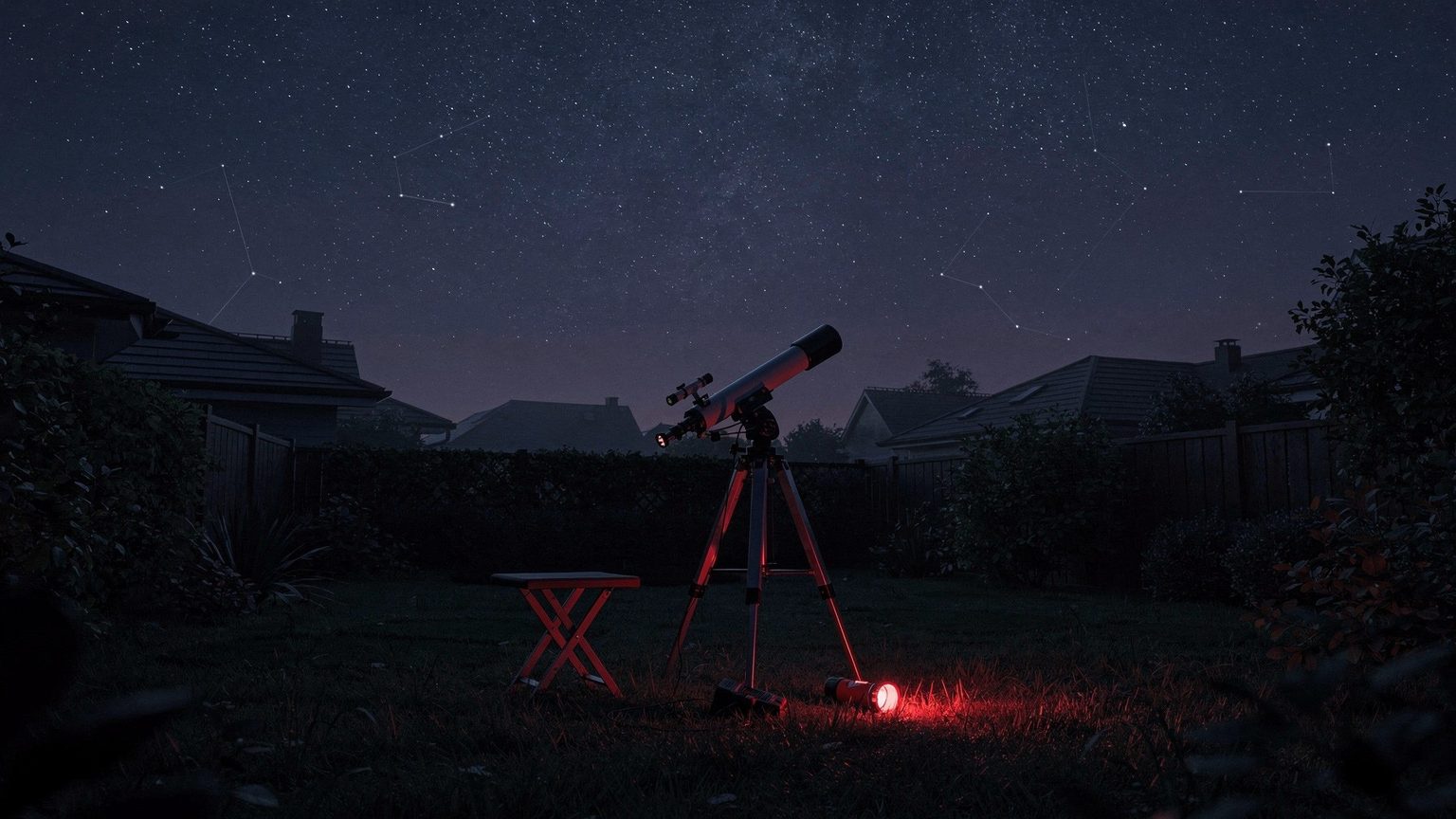
Third, backyard astronomy: the telescope on its lawn holds the middle of the picture.
Backyard astronomy banner
Create a banner for a backyard astronomy channel: in the narrow center band, a small telescope on a grass lawn points at a starry sky, a folding stool and a red flashlight beside it. The scene continues to every edge: deep indigo night with faint constellations fills the top, dark rooftops and hedges close the bottom, garden shadows run along the sides. Quiet night mood, pinpricks of light. No text, no letters, no logo.
The YouTube thumbnail has its own numbers; our guide covers them.
Two moves bring the file up to size
Niki makes the wide picture; two edits carry it over the official minimum. It is free to try, no account needed.
-
Create the scene in landscape
In the chat, choose the action first: create a picture from a description, or rework a photo you send. Then click the landscape format among the three buttons, portrait, landscape and square; the writing field opens after that. The file comes back at 1,792 x 1,024 pixels. Save it right away: it opens in high definition and stays online for 48 hours.
-
Trim 16 rows of height
The landscape shape is 7:4; the upload wants 16:9. Cut 16 rows away, at the top or at the bottom, and the file measures 1,792 x 1,008 at full width. For the cut, YouTube itself points to Preview on an Apple machine or Microsoft Photos on Windows; the preset aspect ratios for cropping come from Photos.
-
Enlarge to the target size
Crop first, enlarge second. From 1,792 x 1,008, multiply each side by 8/7 and the file reaches 2,048 x 1,152, the minimum. Multiply by 10/7 instead, and the file lands on 2,560 x 1,440, the size meant for TVs. An enlargement adds pixels, not detail: favor a simple scene. For a file that starts too soft, our guide on ways to improve image quality takes over.
Four steps in YouTube Studio
Everything happens inside YouTube Studio.
-
Open the branding panel
Sign in to YouTube Studio, then select Customization, then Profile, from the left menu.
-
Click CHANGE
Click CHANGE and select the file you prepared.
-
Set the crop
Select a preview, change the crop, then click DONE.
-
Click PUBLISH
Click PUBLISH, and the new banner is live.
The banner carries no links: the profile does that job, with up to 14 on the Home tab.
Niki warns you
Copying the banners or the colors of another channel counts as impersonation, even without a 100% identical copy: a clear intent is enough. An AI disclosure is no defense: it “is not a free pass to impersonate a person, entity, or channel.”
Niki
AI image generator
“Tell me what your channel is about, and I paint the scene wide, what matters in the middle band, calm edges everywhere else. A photo works too: send it, and I rework it the same way.”
Frequently asked questions
Why does my banner look cropped on my phone?
One picture serves every screen, and it shows differently from one device to the next; the phone is one of the views that crop it. Text that sits in the safe strip is the text that stays.
Is there a banner size for phones?
No. One image rule, one safe area: YouTube publishes no figure per device. The phone just shows a narrower slice of the same file.
Can I add links to the banner picture?
The banner guidelines set no rule on links drawn into the image. The profile is the place meant for them: up to 14 links on the Home tab, the first one near the subscribe button.
What size does the channel profile picture need?
It renders at 98 x 98 pixels, from a JPG, GIF, BMP or PNG file of 15 MB maximum, never animated.
A banner for every screen starts with one sentence
Pick a prompt above, or your own; the trim and the resize do the rest.
Sources
- “Manage your channel branding”, YouTube Help.
- “Manage your YouTube channel’s profile”, YouTube Help.
- “Impersonation policy”, YouTube Help.
- “Edit photos and videos in Windows”, Microsoft Support.