
A blurry photo, a tiny screenshot, an old pixelated image: AI promises to improve it all for free. But you should know what the word “free” really covers. We measured the quotas announced on the official pages of fourteen services on August 21, 2026, and tested several interfaces without an account. Here is what the free plan actually gives you, and how to choose.

The essentials
“Free” ranges from 5 monthly credits to 200 monthly AI uses. Image Upscaler caps at 5 credits a month on its English page, Ezenhancer gives 10 free credits a day without an account, Canva counts up to 200 Standard AI uses per month, Nero AI and LetsEnhance give 10 one-time credits.
The cap is not only about volume. Some free plans limit the output resolution (1000 x 1000 pixels on Nero AI, 8 megapixels on LetsEnhance), others add a watermark.
AI does not create details that do not exist. Beyond 2x or 4x, it invents plausible textures. For large prints, the source image size matters more than the upscaling factor.
What “improve image quality” really means
Improving the quality of an image is a catch-all phrase: behind it hide four different operations, which do not use the same tools or have the same limits.
Upscaling: the definition Upscaling means increasing the number of pixels in an image. Where a simple enlargement blurs, AI analyzes the image and “guesses” coherent details: an artificial but convincing sharpness. The term enhancement is used when the tool also improves sharpness, noise and colors.
The four most common use cases:
- Upscale: double or quadruple the resolution for printing, for a bigger screen, or to reuse a small image found on the web.
- De-blur: make a blurry photo sharp again (motion, missed focus, compression).
- De-pixelate: soften the large visible pixels of a very low-resolution image, often a screenshot or an old image.
- Restore: clean up noise, rebalance colors and light, revive an old or damaged photo.
The good news: all these uses have a free online version, no software to install. The bad news: the volume offered, the output resolution and the watermark change everything, and each vendor sets its own rules. That is exactly what we measured.
The real free quotas, measured on August 21, 2026
We measured the official pages of fourteen services on August 21, 2026, in their English version where one exists (for LetsEnhance, whose English pricing page did not render in our automated test, the French and Spanish grids were used and the row says so). The promises on the landing pages (“free”, “no sign-up”) are often more generous than the grid published a few clicks away: this table makes that gap visible.
| Service | What the free plan announces (measured 08/21/2026) | Account | Watermark | Output |
|---|---|---|---|---|
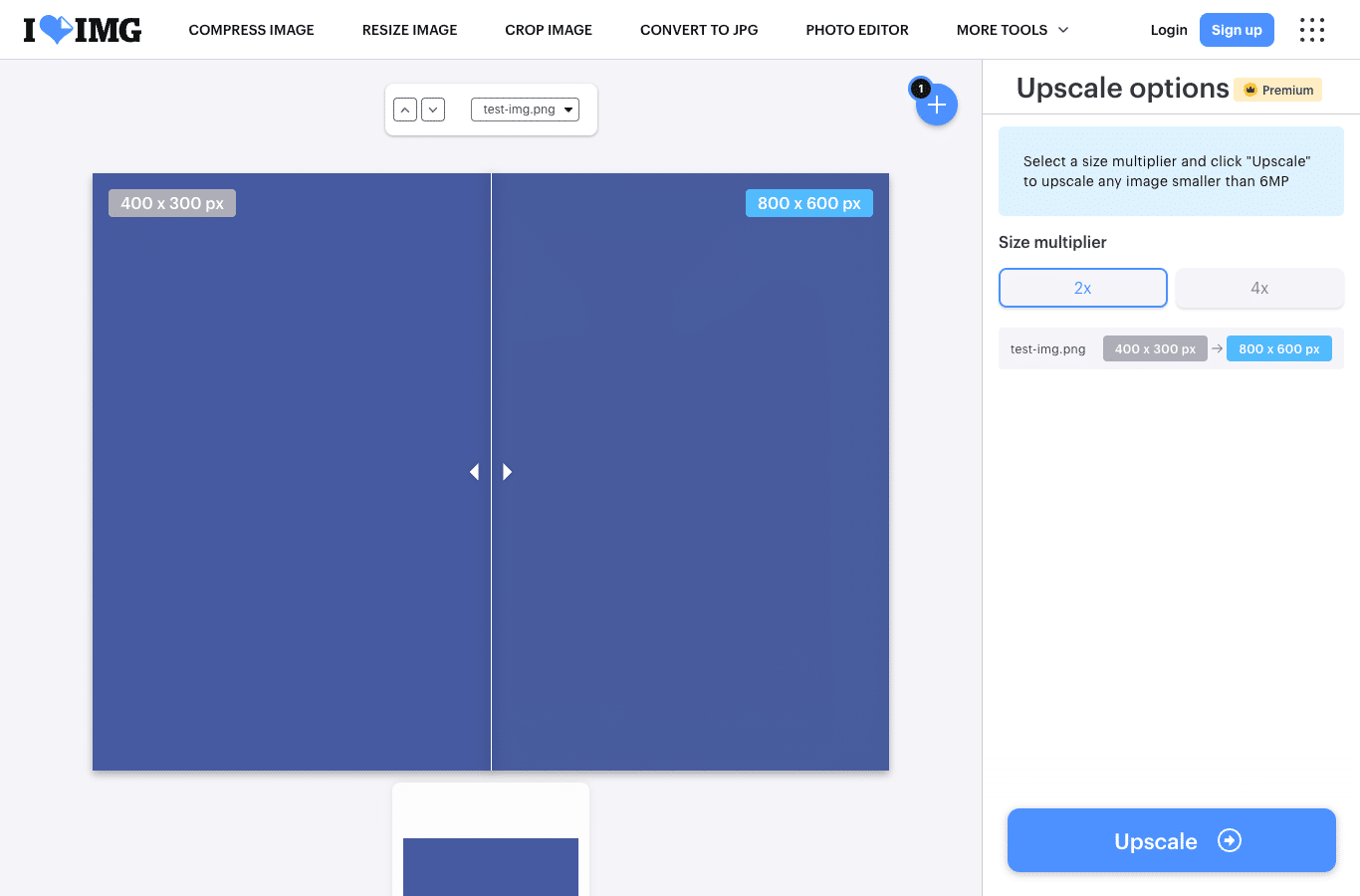
| iLoveIMG | Enhancement tool accessible without an account, tested live: 2x and 4x multipliers, for images under 6 MP | No | Not announced | 2x or 4x |
| Canva | Free AI allowance: “Up to 200 Standard AI uses or 20 Premium AI uses” per month, shared across all AI tools | Yes | No | Depends on image |
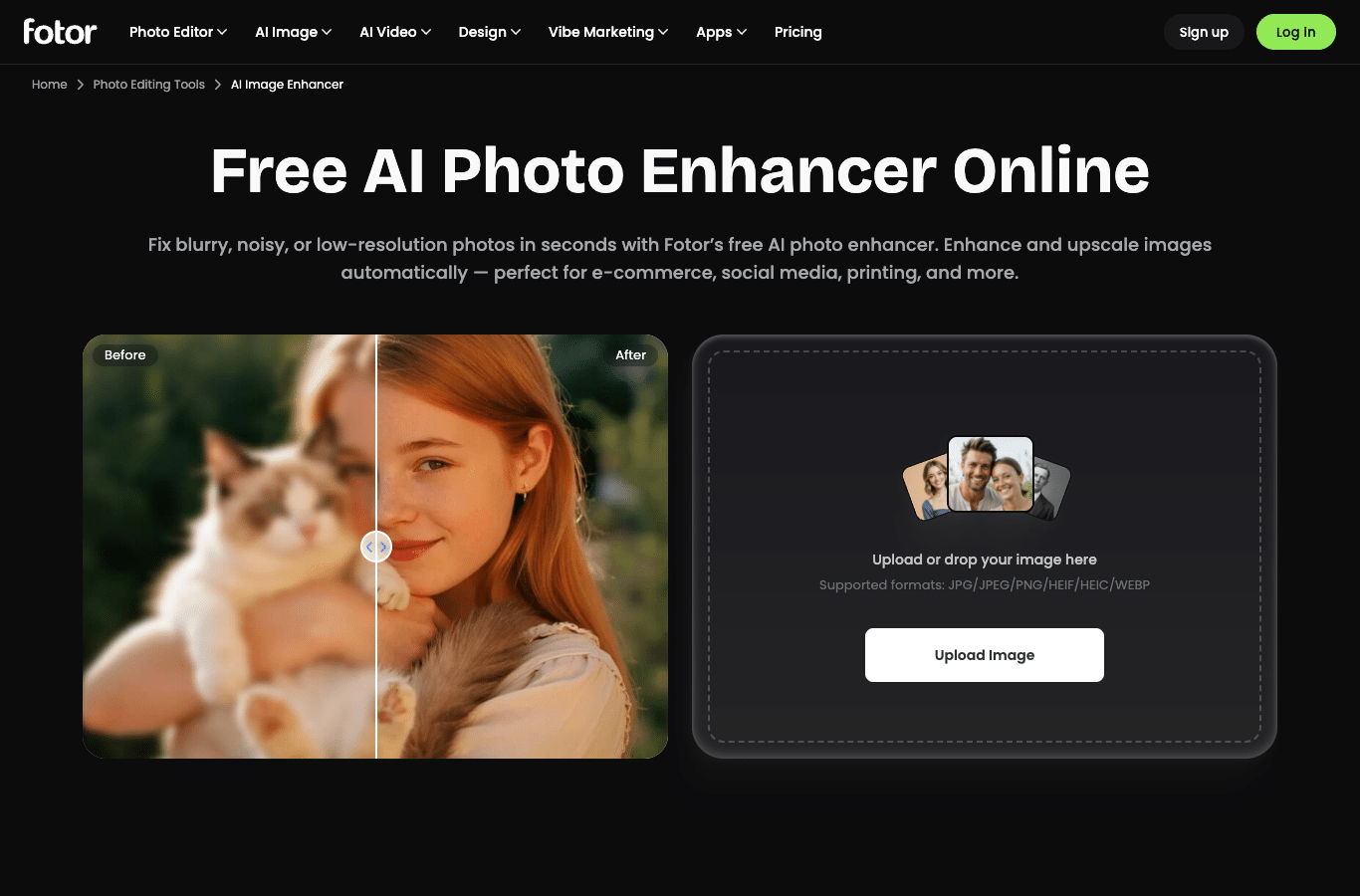
| Fotor | “Enhance and upscale images automatically”, “2x or 4x” upscaling, up to 4K or 8K, “No Watermarks”; no daily quota published on the English page (the French page offers 2 free trials a day) | No | Announced without watermarks | Up to 4K or 8K |
| Nero AI | “10 Credits (One-time)” on sign-up, 0 EUR per month; free output capped at 1000 x 1000 pixels and 5 images per batch | Yes | Not announced | 1000 x 1000 px max |
| IObit | no sign-up and no watermark, up to 6 images per batch, files up to 10 MB, JPG, PNG and WebP formats | No | No | HD, not specified |
| Pixelcut | free, no sign-up, watermark-free download; files up to 100 MB and 8000 x 8000 pixels; free upscaling remains limited (unpublished quota) | No | No | 8K or 16K advertised |
| Ezenhancer | “Daily free 10 credits”, no sign-up or download, watermark-free output, up to 4K | No | No | Up to 4K |
| LetsEnhance | 10 credits on sign-up, no credit card, with upscale output capped at 8 megapixels on the free plan (grid as shown on the French and Spanish pages; the English pricing page did not render in our automated test); subscription from $9 a month with annual billing ($12 monthly, 08/21/2026) | Yes | Yes, removed for paying users | 8 MP max |
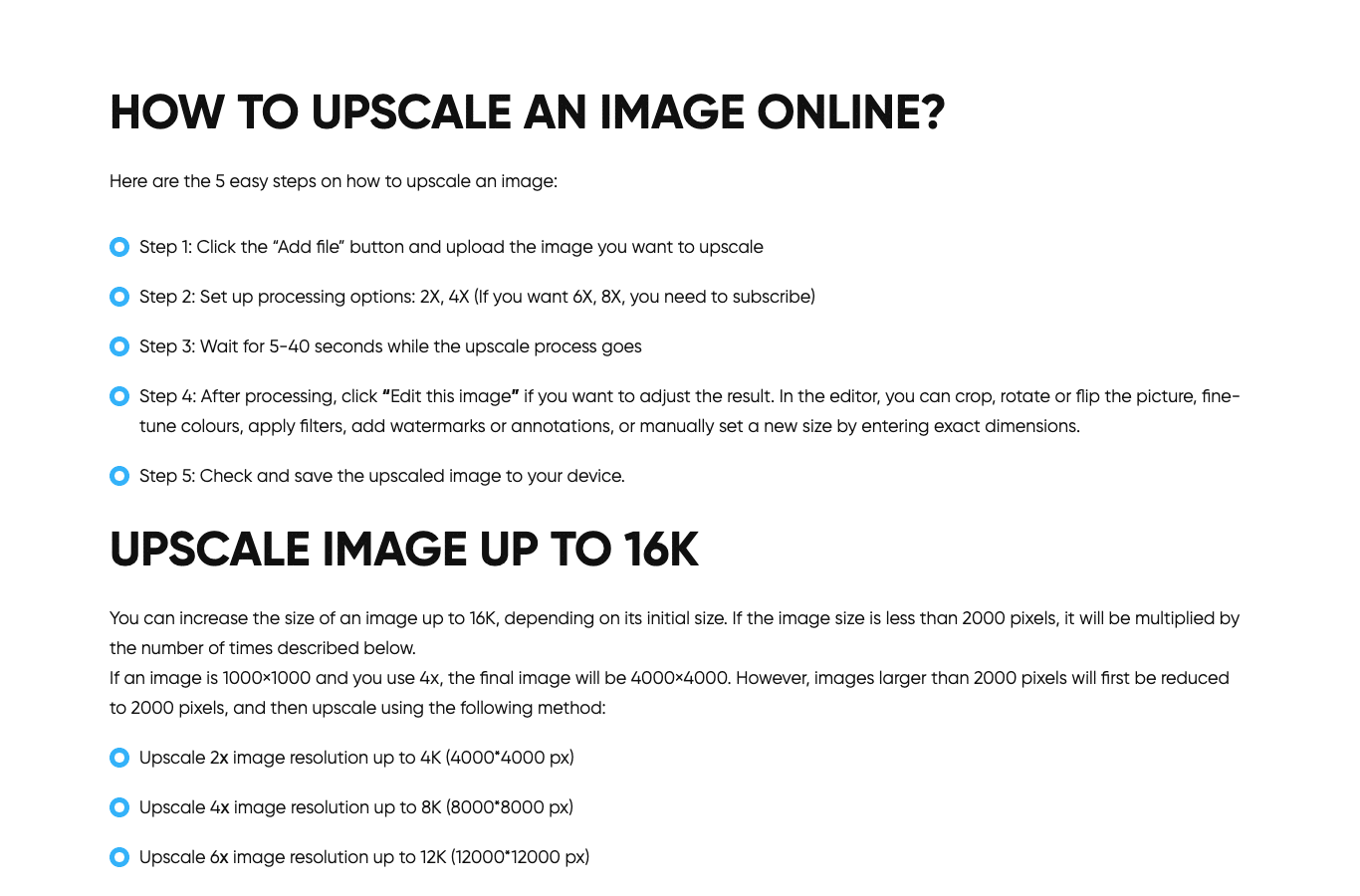
| Image Upscaler | “5 free credits per month for all registered users” (English page); files beyond 2000 x 2000 pixels are downsized first, max output 8000 x 8000 | Yes | Not announced | Up to 8000 x 8000 |
| Artguru | Free advertised, maximum 200 photos per batch, 4K upscaling, “up to 8x” enlargement; no published quota on the English page | Not specified | Not announced | 4K advertised |
| PicWish | Free plan with an unquantified daily limit; up to 48,000 pixels advertised on the tool page | Yes (free plan) | Not announced | Up to 8K advertised |
| Zoviz | Claims to be 100% free, with up to 16x and no sign-up or watermark; no quota published on the page | No | No | Up to 16x advertised |
| img2go | Free online enhancement, direct trial without an account, one file at a time; paid subscription for advanced uses | No | Not announced | Not specified |
| Adobe Express | Free to use, no credit card required, files under 40 MB; some AI-powered features require generative credits (amount not published on the page) | Yes | Not announced | Not specified |
Three lessons come out of this survey.
“Free” does not mean the same thing everywhere. Between Fotor’s daily trials (French page only), the 10 lifetime credits of Nero AI or LetsEnhance, the 5 monthly credits of Image Upscaler on its English page and Canva’s 200-use allowance, the free volume goes from 5 monthly credits (Image Upscaler) to 200 monthly uses (Canva), a factor of one to forty. Always check the volume before choosing, not just the word “free” on the landing page.
The cap can be the output, not the volume. Nero AI caps the free output at 1000 x 1000 pixels, LetsEnhance at 8 megapixels: a “4x upscale” that ends up smaller than your original says a lot. Read the output column before running the process.
Several services promise without numbers. Zoviz, Artguru, Adobe Express, Pixelcut, PicWish and img2go advertise free use without publishing any quota (Fotor publishes no daily quota on its English or Spanish pages either): the volumes can be generous or tiny, and no grid lets you know in advance. A real test remains the best indicator.
The selector: which free tool for your image?
Not all these services fit your specific case: improving a face photo, upscaling a product for a website, de-pixelating a screenshot or reviving an old photo do not call for the same tool. This selector combines four criteria (image type, target result, your priority and volume) with the quotas measured above. It is computed entirely in your browser, nothing is transmitted.
Which free tool should improve your image?
Answer the four questions: the selector recommends the most suitable service among those we measured on official pages on August 21, 2026. No data is transmitted: everything is computed in your browser.
Recommendation
Fit: 0/8
Choose one answer per question to see the recommendation.
The eight selector recommendations, in detail
iLoveIMG
The simplest way to upscale without an account
- Instant upload with no account (tested on 08/21/2026)
- 2x and 4x multipliers, for images under 6 MP
- Great for a quick upscale, no sign-up
Canva
The complete toolbox, with a generous allowance
- Free AI allowance: up to 200 Standard AI uses or 20 Premium AI uses per month (pricing page, 08/21/2026)
- Free account required
- Fixes dark, blurry or oversaturated photos
Fotor
The no-account reflex to de-blur and upscale a little
- The English page promises enhancement without watermarks
- 2x or 4x upscaling, up to 4K or 8K
- The French page adds 2 free trials per day, a promise absent from the English page
Nero AI
To de-blur and de-pixelate, with a cap you should know
- 10 credits (one-time) on sign-up
- Free output capped at 1000 x 1000 pixels
- 5 images per batch on the free plan
IObit
The most generous free tool without account or watermark
- Free, no sign-up, no watermark
- Up to 6 images per batch, files up to 10 MB
- JPG, PNG and WebP formats
Pixelcut
To upscale a lot without account or watermark
- Free, no sign-up, watermark-free download
- Files up to 100 MB and 8000 x 8000 pixels
- Free upscaling remains limited (unpublished quota)
Ezenhancer
The most regular daily quota without sign-up
- 10 free credits per day, no account
- Watermark-free output advertised
- Enhancement up to 4K
LetsEnhance
Pro quality for old photos, watermark included
- 10 credits on sign-up, no credit card
- Free upscaling capped at 8 megapixels
- Watermark on the free plan, removed when paying
What the official pages really say
Six services deserve a closer look: they occupy the top spots for “improve image quality ai free” and their pages each say, in their own way, something useful about the free tier.
iLoveIMG: the no-account reflex, tested for real
Number one on August 21, 2026, iLoveIMG’s upscaling tool accepts an image with no sign-up at all: we uploaded a file and instantly got the 2x and 4x enlargement options, with the mention of optimizing images under 6 MP. Simple and direct, it suits occasional upscaling. The limit lies in that same sentence: beyond 6 megapixels, the tool is not designed for your image.
Fotor: enhancement without watermarks, without sign-up
Fotor’s AI Image Enhancer page promises to “fix blurry, noisy, or low-resolution photos in seconds”, with “2x or 4x” upscaling, resolutions up to 4K or 8K and “No Watermarks” on downloads. Localization note: the French page adds 2 free trials per day, a promise that does not exist on the English or Spanish pages, which publish no daily quota. Read the page in your own language before counting on a daily volume.
Nero AI: 10 lifetime credits, and a capped output
Nero AI shows a free plan at 0 EUR per month with “10 Credits (One-time)” on its pricing page: ten jobs, once, not ten a month. The grid detail is even more telling: on the free plan, the upload file size is capped at 1000 x 1000 pixels and multi-upload at 5 images per batch, versus 4000 x 4000 pixels and 30 images on Standard (16.95 EUR per month). For the occasional de-blur of a small image, the free tier is enough; for upscaling, the 1000 x 1000 pixel output changes everything.
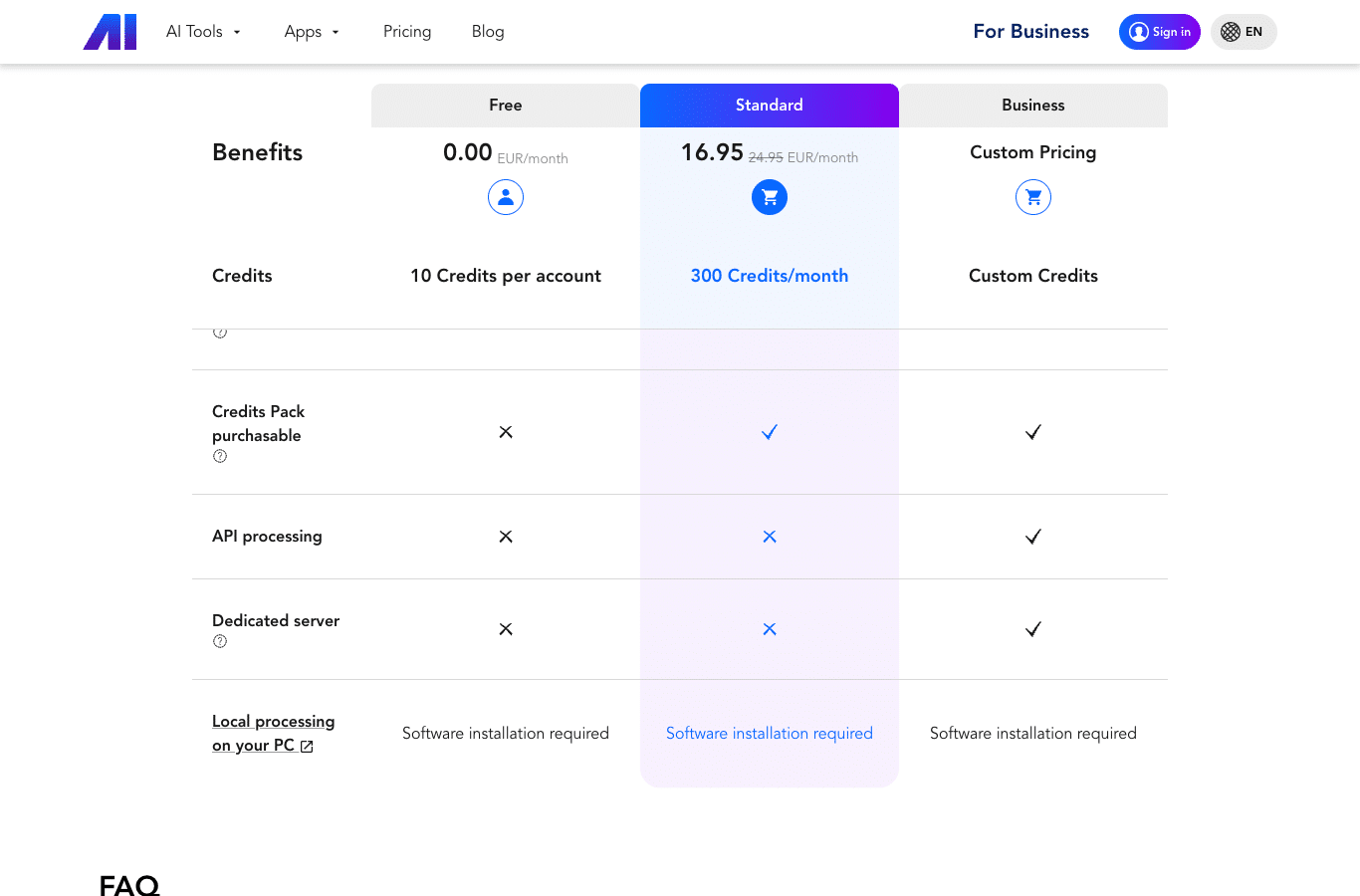
Image Upscaler: 5 credits a month, with a rare admission
Image Upscaler (imageupscaler.com) advertises “Upscale Images up to 16K with AI” on its landing page, and its FAQ specifies: “Image Upscaler provides 5 free credits per month for all registered users”. Five images a month, with an account. Worth noting: on this English page, the “Understand the Limits” warning that the French and Spanish versions display (“upscaling is not a miracle worker”, “maximum resolution of 8K”) is absent. The gap between the 16K headline and the actual limits is easier to spot on the French and Spanish pages than on the English one.
Canva: the most generous allowance, with an account
Canva remains the most comfortable choice for regular use: its pricing page reserves for the free plan “Up to 200 Standard AI uses or 20 Premium AI uses” per month, an allowance shared across all AI tools in the service, image enhancement included. The “Enhance image quality with AI” tool fixes dark, blurry or oversaturated photos. The price to pay: a free account and an interface built for full design work, heavier than a dedicated tool.
LetsEnhance: pro quality, watermark included
LetsEnhance positions itself on quality: its free plan offers 10 credits on sign-up, with no credit card, and upscale output capped at 8 megapixels. Two limits to know: the free tier is capped at 8 megapixels of output (larger images remain paid) and the watermark is only removed for paying users. For an old family photo you really want to get right, the rendering justifies the trial; for regular use, the budget (from 9 dollars a month with annual billing, per the French and Spanish pages, 08/21/2026) eventually weighs in. Note: the English pricing page did not render in our automated test; the French and Spanish pages show the same grid.
The limit nobody advertises: AI does not create details that do not exist
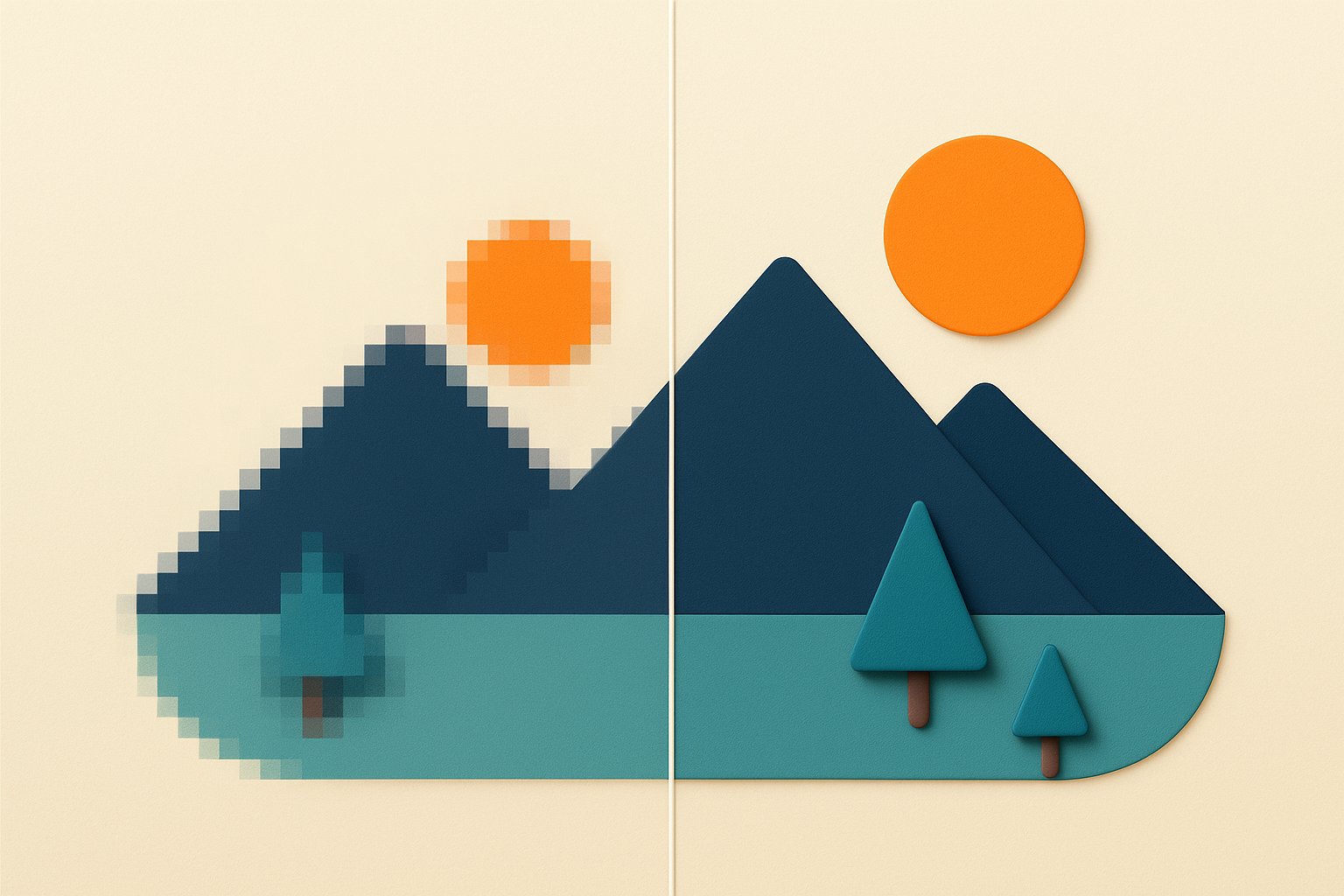
An AI upscaler does not “recover” lost information: it manufactures plausible detail. Between the existing pixels, the model draws textures, strokes and edges that were not in the original. That is why a 2x or 4x factor gives convincing results, while an 8x or 16x factor produces a larger but “invented” image that will not survive large printing or close zooming.
Two practical rules follow from this limit, and they apply to every tool:
- Start from the best source you have. A sharp but small image upscales better than a large blurry one: blur can only be fixed on the surface.
- Prefer lossless formats (PNG over JPEG) when you can: compression artifacts get amplified by upscaling.
The right reflex before upscaling: if the source is a 400 x 300 pixel thumbnail, a 4x factor gives 1600 x 1200 pixels, not real 4K. A “4K” advertised from a small source is a marketing argument, not a detail guarantee.
The 5-step method to improve an image for free
Whatever tool you pick, the workflow is the same. It avoids the two most common mistakes: upscaling before cleaning, and picking the maximum factor “to be safe”.
- Define the final use. Screen, social media, 10 x 15 print or poster: the required resolution is not the same (see the table below).
- Measure the source image. Note its pixel dimensions and file size. An image under 1 megapixel will need a large factor; an already sharp 2000 x 2000 image will be fine with 2x.
- Pick the tool with the selector above. Combine the image type, the target result, your priority (account, watermark, quality) and the volume.
- Set the factor: 2x, 4x maximum. Beyond that, the size gain does not compensate for the loss of naturalness. If the tool offers a “sharpness” or “noise reduction” setting, run it before upscaling, not after.
- Check the result and download. Zoom into a detail (a face, a text, a texture) before validating: that is where artifacts show. Download in PNG when the format is offered.
To retouch a photo (remove an element, change a background, crop), quality enhancement is not the right tool: see our guide edit a photo with AI for free. And if your goal is to turn a photo into something else (a professional headshot, an avatar), generation from an image is covered in this image-to-image generator comparison.
Upscaling for print: the real resolutions
Printing requires a minimum pixel density: count 300 DPI (dots per inch) for a document viewed up close, 150 DPI for a large format viewed from afar. Here is what that means, and what AI upscaling can do for an 800 x 600 image.
| Print size | Dimensions at 300 DPI | Dimensions at 150 DPI | Factor for an 800 x 600 image (at 300 DPI) |
|---|---|---|---|
| 4 x 6 in | 1200 x 1800 px | 600 x 900 px | 4x, with cropping |
| Letter | 2550 x 3300 px | 1275 x 1650 px | 8x, average result |
| 11 x 17 in | 3300 x 5100 px | 1650 x 2550 px | beyond 8x, source too small |
| Poster 20 x 28 in | 6000 x 8400 px | 3000 x 4200 px | impossible, source too small |
Read this table backwards: at 300 DPI, a letter-size print needs an 8x upscale for an 800 x 600 image, an average result. At 150 DPI (large format viewed from afar), the factor drops to 4x, which is reasonable. Mind the aspect ratio: a 4:3 source does not fill Letter or A4 without cropping, the factors above cover the height of the format and the crop trims the sides. For a 20 x 28 inch poster, no factor will compensate for a tiny source: you need a better original, or vector content. Print resolution also matters for AI-generated posters: our article free AI poster generator: the missing resolution covers it entirely.
DPI and pixels: the math. To find the printable size of an image, divide its pixel width by the target DPI: a 2550-pixel-wide image prints at 8.5 inches at 300 DPI, i.e. exactly US Letter. The whole table above comes from this division.
FAQ: your questions about AI image enhancement
How do I improve the quality of an image with AI for free?
Upload your image to a free enhancement service (iLoveIMG, Fotor, IObit or Ezenhancer work without an account), pick the 2x or 4x factor, then download the result. For regular use, Canva offers the most generous free allowance on the market, with an account. The selector above points you to the right tool for your image and your priority.
Can you improve the quality of a pixelated photo?
Partially, yes: AI softens the large pixels and rebuilds plausible edges. The best results come from lightly compressed images of sufficient size. A heavily degraded image will get smoother, but truly lost details cannot be recovered: that is the physical limit of every upscaling technology.
What is the best free tool to de-blur an image?
Fotor promises enhancement without watermarks on its English page, Nero AI gives 10 one-time credits with output capped at 1000 x 1000 pixels, and IObit processes up to 6 images with no account or watermark. For a blurry face photo, the “portrait” models of Artguru or Pixelcut deliver good results, but their free quotas are not published on their English pages.
How do I convert a photo to HD for free?
Convert to HD basically means upscaling the image and boosting sharpness: all the services in the table above do it. The easiest without an account: iLoveIMG (2x or 4x) or IObit (up to 6 images). Watch out for up to 16K claims: the actual output depends on the size of your source image, as the Image Upscaler example shows.
Do I need an account to improve an image for free?
No. iLoveIMG, Fotor, IObit, Pixelcut and Ezenhancer accept a direct upload without sign-up (tested on August 21, 2026 for iLoveIMG). Nero AI, LetsEnhance, Canva, Image Upscaler and PicWish, on the other hand, require an account to use their free allowance, and credits are not transferable.
How many images can I improve for free?
It ranges from 10 daily credits without an account (Ezenhancer) to 200 monthly uses with an account (Canva), via 10 one-time credits (Nero AI, LetsEnhance) and 5 monthly credits (Image Upscaler on its English page). Fotor publishes no daily quota on its English page, unlike its French page. IObit processes up to 6 images per batch with no account or watermark. There is no common rule: the full table is at the top of this article.
What resolution do I need to print an upscaled image?
Count 300 DPI for a document viewed up close: a letter-size print needs 2550 x 3300 pixels, a 4 x 6 inch print settles for 1200 x 1800 pixels. At 150 DPI (large format viewed from afar), the requirements are halved. If your source is smaller, a 2x or 4x AI upscale may be enough; beyond that, the printed result will show an “invented” texture.
Can AI improve any image?
No. An extremely compressed, blurry or tiny image can be cleaned up and upscaled, but it cannot be restored to a quality it never had. Vendors sometimes admit it: Image Upscaler’s French and Spanish pages warn that upscaling “is not a miracle worker” (the warning is absent from its English page). The rule: the better the source, the better the result.
Improving image quality: free exists, limits too
The takeaway from this August 21, 2026 survey is simple: excellent free tools exist to improve image quality, from no-account upscaling to processing several images a day. But the word “free” hides gaps of one to forty depending on the service (5 monthly credits at Image Upscaler against 200 monthly uses at Canva), and no tool creates details that do not exist. Start from the best image you have, pick the 2x or 4x factor, and check the result before downloading: that is the method that works, whatever the tool.
And if your need goes beyond upscaling, remember that AI can also turn a selfie into a professional headshot or animate an image: neighboring use cases, covered separately on this site.
Nation AI enhances and edits your images
Nation AI’s image generator creates and edits your images, retouches and crops an existing file, free and without sign-up. For a massive resolution upscale, keep a dedicated upscaler: Nation AI prepares the right source image, that is its job.
Try the Nation AI image generator
Or explore all Nation AI tools.
Main sources: measurements taken on August 21, 2026 on the official English pages of the services listed (iloveimg.com, canva.com, fotor.com, ai.nero.com, iobit.com, pixelcut.ai, ezenhancer.ai, letsenhance.io, imageupscaler.com, artguru.ai, picwish.com, zoviz.com, img2go.com, adobe.com), tool pages, pricing grids and FAQs; real test of the iLoveIMG interface (no-account upload, 08/21/2026). Quotas and prices quoted are those displayed by vendors at that date: they change frequently. This article is general information, not professional advice.