
The short version

Yes, you can animate an image with AI for free. But the word “free” lost a lot of weight in 2026: watermark, 720p ceiling, 5 to 6 seconds, no commercial use, and quotas that evaporate in two clicks.
The three free offers that still hold up: Hailuo AI (2,000 credits when you create the account, roughly 80 clips), Kling AI (daily credits, watermarked 720p) and Adobe Firefly, whose free plan grants limited daily generations on Veo 3.1 Fast and Kling 3.0.
Two traps: Runway, whose free plan is capped at 125 credits handed out a single time, and Luma, which no longer lists any free plan on its pricing page.
Every number on this page was pulled from the vendors’ own pages on July 28, 2026, screenshots included.
A family photo that starts moving again, a product that spins on itself, a drawing that comes alive: animating an image with AI now takes thirty seconds. The problem is no longer technical, it’s commercial. Every tool prints “free” in big letters, then hides the watermark, the 5-second cap and the quota that runs dry on your third try.
We opened the official pricing pages of ten services on July 28, 2026 and wrote down what they really say. Here is what free is worth, tool by tool, and how to get a decent result without pulling out a credit card.
Two very different ways to animate an image
This is the mix-up that wastes the most time. The same word, “animate,” covers two technologies that have nothing in common.
Motion effects
The tool warps, zooms, ripples or cuts out your existing image. Nothing is invented: the pixels are the ones from your photo, simply moved around.
Canva, Adobe Express, VIMAGE, most mobile apps.
Generative video
A video model takes your image as its first frame and invents the frames that follow: a real head turn, fabric catching the wind, a camera move.
Kling AI, Hailuo, PixVerse, Vidu, Runway, Veo, Sora.
Image to video (i2v)
The technical name for the second family. You supply a starting image, sometimes an end image, and a sentence describing the motion you want. The model outputs a 4 to 10 second clip. This is the family behind almost every “animate an image with AI” search.
The distinction matters because it changes everything: Canva ranks at the top of Google for this query, but its “photo animation” page describes a tool that applies an Ink effect, a 3D Layer effect or a Brush effect, then exports to MP4 or GIF. It’s clean, it’s instant, it’s genuinely free, but your subject will not move. If you want a person who turns her head, you need generative video.
Which free tool fits your image?
Answer the four questions below: the picker weighs your answers and names the tool whose free offer matches your need, with its real limits.
Free animation tool picker
Four questions, one reasoned verdict with what the free plan actually contains.
Kling AI
The best result-per-effort ratio right now for a realistic starting image. The model handles camera moves and physical scenes (fabric, water, hair) very well.
What free really is: Basic plan at $0, credits handed out at login, 720p output, brand watermark, and one explicit line on the pricing grid: generated content is not for commercial use.
Hailuo AI (MiniMax)
The most generous at the start, and the most comfortable with faces and micro-expressions. Good pick if you want to run a lot of tests before committing to a subscription.
What free really is: 2,000 credits when you create the account. A 6-second Hailuo 2.3 video at 768p costs 25 credits, so roughly 80 clips before you have to pay.
PixVerse
The specialist for illustrated, anime and cartoon styles, with a library of ready-made effect templates that spare you writing a motion prompt.
What free really is: free daily credits (the amount is not published on the site). The web app’s default setting is a 5-second V6 video at 540p, billed at 38 credits.
Adobe Firefly
The most serious entry point when the video has to be published by a brand. Firefly bundles several of the market’s video models into a single interface, with terms of use you can actually read.
What free really is: the official comparison grants the Free plan “limited daily generations” on Google Veo 3.1 Fast and on Kling 3.0 at 720p. The premium image models, for their part, are marked “no access.”
Canva
The pragmatic choice when the goal is to publish fast. You are not generating real video, you are applying a motion effect to your image, then adding the text, the format and the export inside the same document.
What free really is: the photo animator applies motion styles (Ink, 3D Layer, Brush) and exports to MP4 or GIF. Fast and with no credit quota, but the subject of the photo does not move.
Is your starting image weak? It decides the quality of the clip. Clean it up or generate it before you animate it.
The 8 tools and their real quotas, checked on July 28, 2026
Every row in this table comes from the vendor’s pricing page or interface, not from a promo page. The screenshots below are the proof.
| Tool | What free gets you | Watermark | Resolution and length | Commercial use |
|---|---|---|---|---|
| Hailuo AI | 2,000 credits at sign-up, about 80 clips at 25 credits each | Yes on the free plan | 768p, 6 s by default | No |
| Kling AI | Basic plan at $0, credits handed out at login, no monthly allowance listed | Yes (removal is a paid perk) | 720p (1080p and 4K are paid) | No, stated explicitly |
| Adobe Firefly | Free plan with limited daily generations on Veo 3.1 Fast and Kling 3.0 | Not specified on the grid | 720p for Kling 3.0, clips of 3 to 4 s counted | Paid tiers recommended |
| PixVerse | Daily credits, amount not published | Yes on the free plan | 540p, 5 s by default (38 credits) | No |
| Canva | Unlimited animation effects, no credits | No on the free elements | MP4 or GIF export, no generative video | Yes, depending on the element license |
| Vidu | Bonus credits at login only, 10 references per month | Yes, watermark-free download is paid | No 720p, no 1080p, no 6 to 8 s clips on free | No |
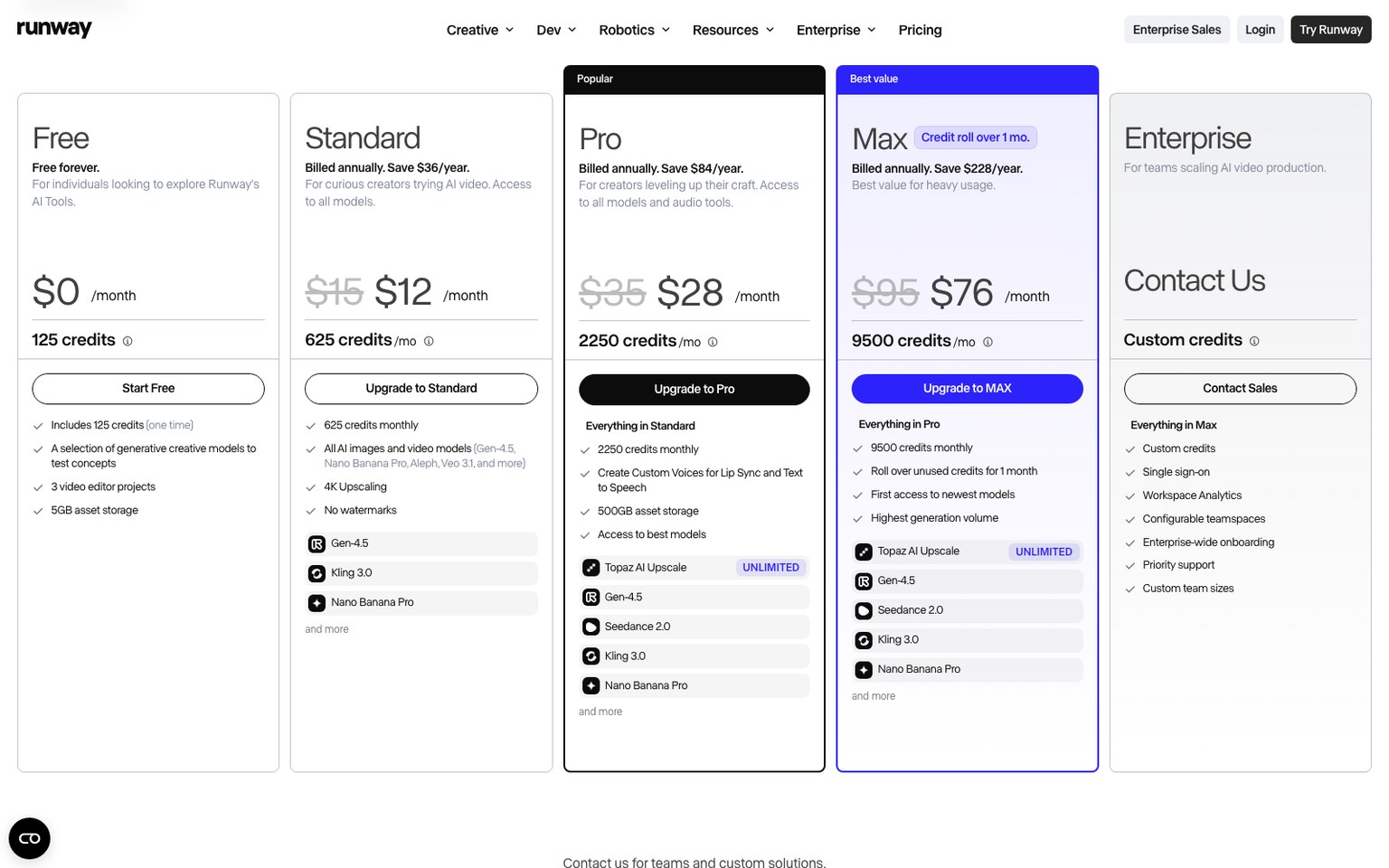
| Runway | 125 credits handed out a single time, never renewed | Yes (“No watermarks” starts at the Standard plan) | About 10 s of video in total, then it’s over | No |
| Krea | 100 units per day, less than one Seedance video per day | Yes on the free plan | Not enough for regular use | No |
Kling AI: the free plan that dares not speak its name
On the official grid, the Basic plan shows $0, the line “Free forever” and, right below it, “No monthly Credits.” In other words: no monthly allowance is guaranteed by contract. Credits land at login, and the vendor has already changed the amount several times. Three lines of the Basic plan deserve a read before you commit: generated content is not intended for commercial use, watermark removal only appears starting at the $6.99 per month tier, and so does generation in 1080p or 4K.
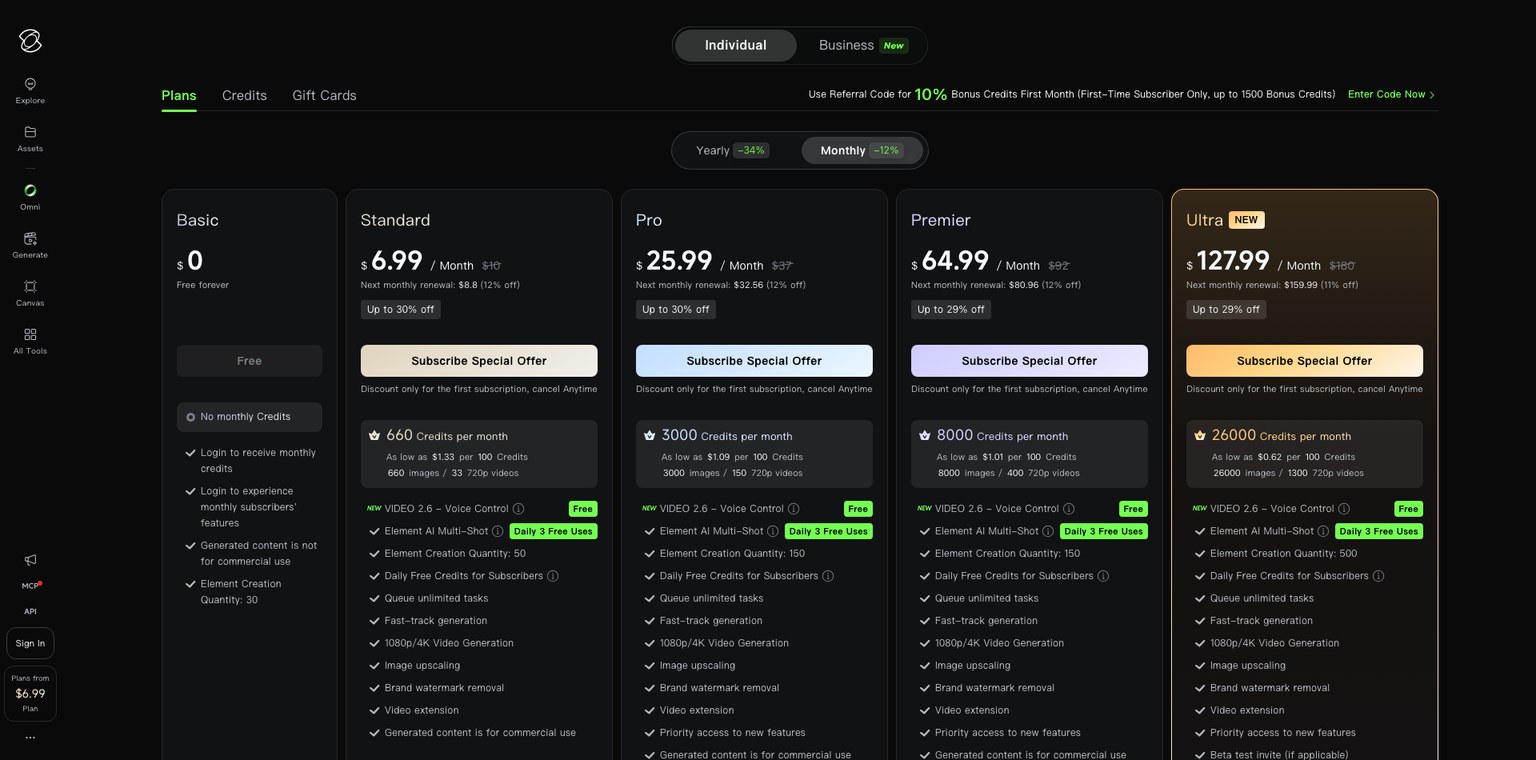
In practice, Kling is still one of the best free picks for a realistic image: the model understands camera instructions well and handles materials better than average. Count on a few 5-second clips a day, at 720p, with a logo in one corner.
Hailuo AI: the most generous at sign-up
MiniMax advertises 2,000 free credits for new accounts. In the creation interface, the default setting is explicit: Hailuo 2.3 model, start frame and end frame, 768p, 6 seconds, for 25 credits. The math is easy: about 80 clips before you have to pick a subscription, which starts at $9.99 per month.
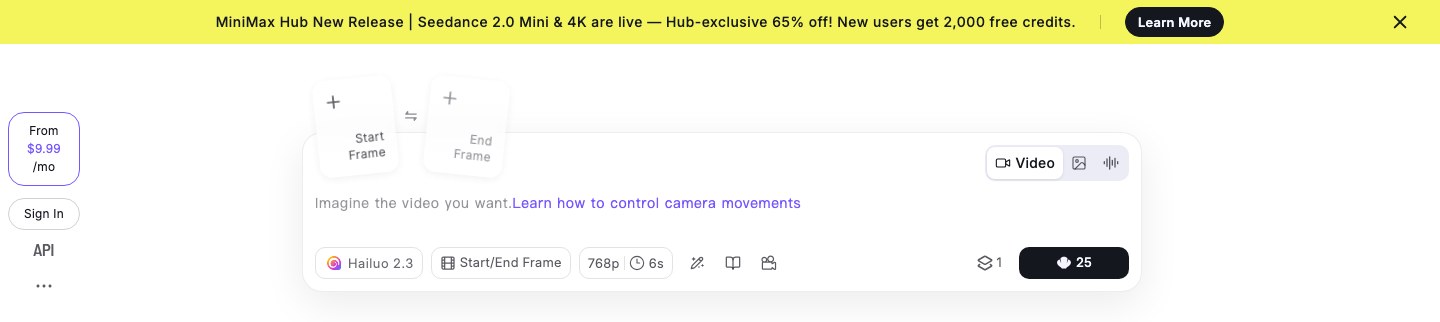
It’s the best testing ground if you don’t yet know which tool suits you: 80 clips is plenty to try a dozen photos from several angles.
Runway: the trap that keeps getting recommended
Runway is the name cited most often in roundups on this subject. Its pricing page, though, leaves no room for doubt: the Free plan includes “125 credits (one time),” a single deposit that never renews. Runway’s FAQ specifies that Gen-4.5 burns 12 credits per second of video. Translation: your free offer is worth about ten seconds of video, for life. Add that the “No watermarks” line only appears from the Standard plan up, and the math is done.
Vidu: a free plan stripped of its substance
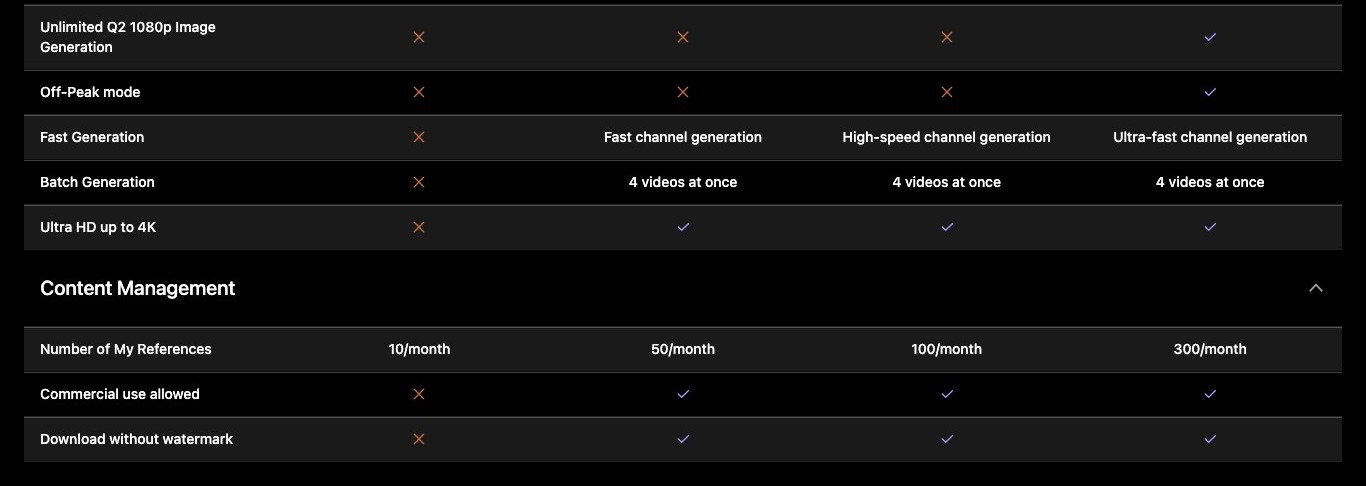
Vidu still shows a “Free” column at $0 per month. The detailed comparison, on the other hand, is far less welcoming: the credits cell simply reads “Log in to Get Bonus Credits,” and the rows “1080p video generation,” “720p video generation,” “6s to 8s video generation,” “Commercial use allowed” and “Download without watermark” all carry a cross for the free plan.
Adobe Firefly: the surprise of this comparison
We expected Adobe to show up as a pure salesman. The detailed table on the pricing page holds a good surprise instead: in the “Free” column, the Google Veo 3.1 Fast and Kling 3.0 at 720p rows carry the note “limited daily generations.” As far as we can tell, that is the only way to touch Veo 3.1 for free from a mainstream creative suite. In exchange, the premium image models (Nano Banana Pro, ChatGPT Image 2 at high quality, FLUX.2 pro) are marked “no access” on that same plan, and the paid tiers start at $9.99 per month.
Luma, Higgsfield, Krea: what disappeared
- Luma. The Plans & Pricing page no longer shows any free plan as of July 28, 2026: individual tiers start at $30 per month. Articles still recommending “30 free videos a month with Dream Machine” are describing an offer that no longer exists.
- Higgsfield. No free plan on the individual pricing page either. The first tier, Starter, is $19 per month for 270 credits.
- Krea. The Free plan still exists and is honest about what it is: 100 units per day, which the page itself translates as “less than one Seedance 2.0 video.” Useful for images, not for video.
What “free” really means in 2026

Five limits show up at almost every vendor. Knowing them saves you an evening.
- The watermark. It’s the most systematic trade-off. It’s visible, often animated, and it sits in one corner of the frame for the whole clip. No serious tool offers to remove it for free, and the services claiming to do it re-encode your video and wreck the quality.
- The resolution. 540p at PixVerse, 720p at Kling, 768p at Hailuo. On a phone, it passes. On a computer screen or full screen, the image is visibly mushy. 1080p is a sales argument everywhere.
- The length. 5 or 6 seconds, rarely more. That’s not a technical limit but a billing choice: most models can produce 10 seconds, those seconds are simply reserved for paid tiers.
- Commercial use. Kling writes it in black and white on its Basic plan, Vidu marks it with a red cross in its comparison. If the video is going to serve a brand, a product or an ad, the free plan does not cover you.
- The queue. Paid tiers buy priority (“fast-track generation,” “fast lane generation”). On free, at peak hours, a 5-second clip can take several minutes.
The broke person’s strategy
Open an account on two tools, not ten. Burn through Hailuo’s 2,000 credits first to find the motion that works on your image, then replay the final version on Kling or Firefly. You get the best render at the exact moment you finally know what you want.
Animate an image in 4 steps

- Pick a sharp image, framed wide. Models need room around the subject to invent the motion. A portrait cropped at the chin almost always warps the face.
- Write a motion prompt, not a description. The image is already there: no need to describe what’s in it. Describe what has to move, and how the camera behaves.
- Generate two or three variants. The same prompt never gives the same result. On a free plan, always budget several credits for this.
- Cut at the right moment. Defects almost always arrive in the last second (melting hands, sliding background). A quick edit that cuts at 4 seconds often saves a clip.
The motion prompt, before and after
Too vague
“A woman in a garden, realistic style, beautiful light, 4K”
Effective
“She slowly turns her head toward the camera and smiles faintly, her hair moves in the breeze, the camera pushes in very gently, the rest of the scene stays still”
Four ingredients are enough: the subject that moves, the amplitude of the motion (slowly, faintly, barely), the camera behavior (locked off, slow push-in, pan left) and what has to stay still. That last instruction is the most underused: it stops the model from animating the whole background at the same time. If you want to dig into how prompting works, our library of image prompts to copy also covers framing and lighting parameters.
The four mistakes that ruin an animation
- Asking for too much motion. “She dances, runs, jumps and turns around” in 5 seconds produces mush. One main movement, that’s all.
- Starting from a low-quality image. A compressed, blurry or pixelated photo stays blurry and turns shaky once animated.
- Animating text or a logo. Video models warp letters every single time. Add the text afterward, in an editing tool.
- Forgetting the format. Pick the ratio before you generate (9:16 for a story, 16:9 for YouTube). Cropping a 540p clip afterward finishes off the quality.
The starting image decides everything

This is the point every roundup forgets. An image-to-video model takes your first frame as it is, then extrapolates. If there’s an artifact, motion blur or a badly cut-out background, it will be in all 150 frames of the clip, and often amplified.
Three moves radically change the result, and they all happen upstream:
Remove a distracting object
Fix the lighting
Cut out the subject
Regenerate the image larger
Change the framing
That is exactly what Nation’s AI image generator does: you upload your photo, you ask for the edit in plain English (remove the passerby, brighten the face, replace the backdrop), and you get back a clean image to feed into the animation tool. To be clear: Nation AI does not produce the video, it produces the right starting image. For the retouching moves themselves, our guide on editing a photo with AI for free details the recipes and the prompts that work.
“No sign-up”: what’s true and what isn’t
It’s the most frequent related search on this query, and the one Google serves worst. Here is how it really stands.
Every real generative video tool asks for an account. That’s not an assumption, it’s written on their own pages: Kling shows “Login to receive monthly credits,” Vidu “Log in to Get Bonus Credits,” Hailuo reserves its 2,000 credits for new accounts. The reason is simple: without an ID, there is no way to cap consumption of a computation that costs the vendor real money.
The pages promising “no sign-up” are playing with words. They let you launch a generation, then ask for an account at download time, or hand you a heavily watermarked file. Vidnoz, which positions itself precisely on that promise, states on its own page that “the free version adds a watermark,” removed only by moving up to the PRO tier.
What genuinely works without an account is light motion effects: some online editors apply a zoom, a ripple or a parallax effect in the browser, without going through a server. The result is instant and quota-free, but we’re back to the first family: your subject does not move.
Beware of “100% free, no limits” sites
Running a video model costs money on every single generation. A site promising unlimited free output makes its money elsewhere: aggressive advertising, resale of your images, or a subscription billed after a trial. Before you upload a photo of your family, read what the service says it does with your files.
Animating a face, an old photo, a drawing
A portrait or a face
This is the most requested use case and the most demanding. Hailuo is currently the most convincing on micro-expressions; Kling does well on wide head movements. Two rules: frame at least from the chest up, and limit the instruction to a single gesture (turn the head, blink, smile). Add “the face stays sharp and stable” to the prompt, it cuts down on warping.
An old family photo
Scanned film photos raise a specific problem: the grain is read as noise and starts crawling. Run the photo through a restoration or cleanup tool first, then animate it. Plan for minimal motion, a gentle push-in rather than an animation of the subject: the result is far more believable.
An illustration, a drawing, an anime style
PixVerse is the most comfortable on this terrain, with ready-made effect templates that spare you writing a prompt. One warning though: a flat illustration with large blocks of color gives the model very little to work with. Drawings rich in detail and depth animate much better.
A visual for a story or an ad
Here, the generated clip is only raw material. You then have to crop it to the right format and add the text, the music and the captions. Our roundup of free AI video editing tools covers that second step, and our guide to Pictory AI details the specific case of turning a script into a finished video.
Watermarks, rights and AI labels
Three things to know before publishing a generated clip, especially if you are not alone in the photo.
- The watermark isn’t only cosmetic. It also works as a provenance marker. Tools that promise to erase it usually operate by recompressing the video, which degrades the image and does not erase the provenance metadata.
- Commercial use is spelled out in the pricing grid. Kling and Vidu both exclude it from their free plan. Posting a video generated for free on a company account puts you outside the service’s terms of use.
- Someone else’s face stays protected. Animating the photo of an identifiable person and publishing it without their consent runs into right of publicity and likeness rules in most states, whatever tool you used. The fact that the video was generated by an AI creates no exception. This page gives general information and does not replace legal advice.
Frequently asked questions
Can you really animate an image with AI for free?
Yes, and with no special trick. Hailuo AI gives 2,000 credits at sign-up (about 80 clips of 6 seconds), Kling AI hands out daily credits to logged-in accounts, and Adobe Firefly’s free plan gives limited daily access to Veo 3.1 Fast and Kling 3.0. Expect a watermark, 720p and clips of 5 to 6 seconds, though.
Can you animate a photo with ChatGPT?
Not on the free plan. OpenAI’s pricing page lists no video generation in the Free plan, which is limited to restricted access to GPT-5.5 Instant and to “limited and slower” image generation. Video runs through Sora, OpenAI’s video app, which works separately and depends on a subscription.
What is the best free tool to animate a face?
Hailuo AI (MiniMax), thanks to its comfortable starting allowance and its handling of micro-expressions. Frame at least from the chest up, ask for a single gesture, and specify that the face has to stay sharp and stable. Kling AI is a good second option when the head movement is wider.
How do you remove the watermark from a free AI video?
There is no clean method. Removal tools crop or recompress the video, which damages the image without erasing the provenance markers, and puts you outside the service’s terms of use. The only legitimate route is a subscription: at Kling, the “Brand watermark removal” line starts at $6.99 per month.
How long is a free AI-generated video?
Between 4 and 6 seconds at almost every vendor. PixVerse offers 5 seconds by default, Hailuo 6 seconds, and Vidu’s comparison reserves clips of 6 to 8 seconds for paid tiers. To get a longer sequence, you have to generate several clips and edit them end to end.
Is there an app to animate a photo on your phone?
Yes: Hailuo AI, PixVerse and Kling AI all offer a mobile app that gives access to the same account and the same credits as the web version. Motion-effect apps (parallax, ripple, zoom) are even more numerous, but they don’t animate the subject itself.
Can you use a free AI video for your business?
No in most cases. Kling states explicitly on its Basic plan that generated content is not intended for commercial use, and Vidu only checks “commercial use allowed” starting with its paid tiers. For professional use, go through a paid tier or through Adobe Firefly, whose terms are designed for brands.
Why does my animation warp hands and faces?
Two main causes. The first is framing: a subject cut off at the edges leaves the model too little room to invent the motion. The second is length: artifacts pile up and usually show in the last second. Frame wider, ask for a subtler movement, and cut the clip before the end.
The bottom line
Animating an image with AI for free is possible, as long as you accept three constant constraints: a watermark, a definition between 540p and 768p, and clips of 5 to 6 seconds. Hailuo AI is still the best starting point for the sheer number of attempts, Kling AI for realistic rendering, Adobe Firefly for serious use and for free access to Veo 3.1 Fast. Runway, Luma and Higgsfield, cited everywhere, no longer have a usable free offer.
The real lever, though, is neither the model nor the prompt: it’s the image you send in. A sharp photo, framed wide, with a clean background, turns a failed clip into a publishable one, on any tool.
Prepare the right image before animating it
Clean up your photo, remove what gets in the way, change the backdrop or generate the starting image directly in plain English with Nation’s AI image generator.
Sources. Kling AI subscription grid (app.klingai.com), Runway Pricing page and FAQ, Hailuo AI (MiniMax) creation interface and subscription page, Vidu plan comparison, Adobe Firefly pricing page, Luma Plans & Pricing page, Higgsfield Pricing page, Krea Pricing page, Canva “Photo Animation” page and ChatGPT pricing page (OpenAI). All accessed on July 28, 2026. Free offers in this sector change fast: check the vendor’s grid before you commit.