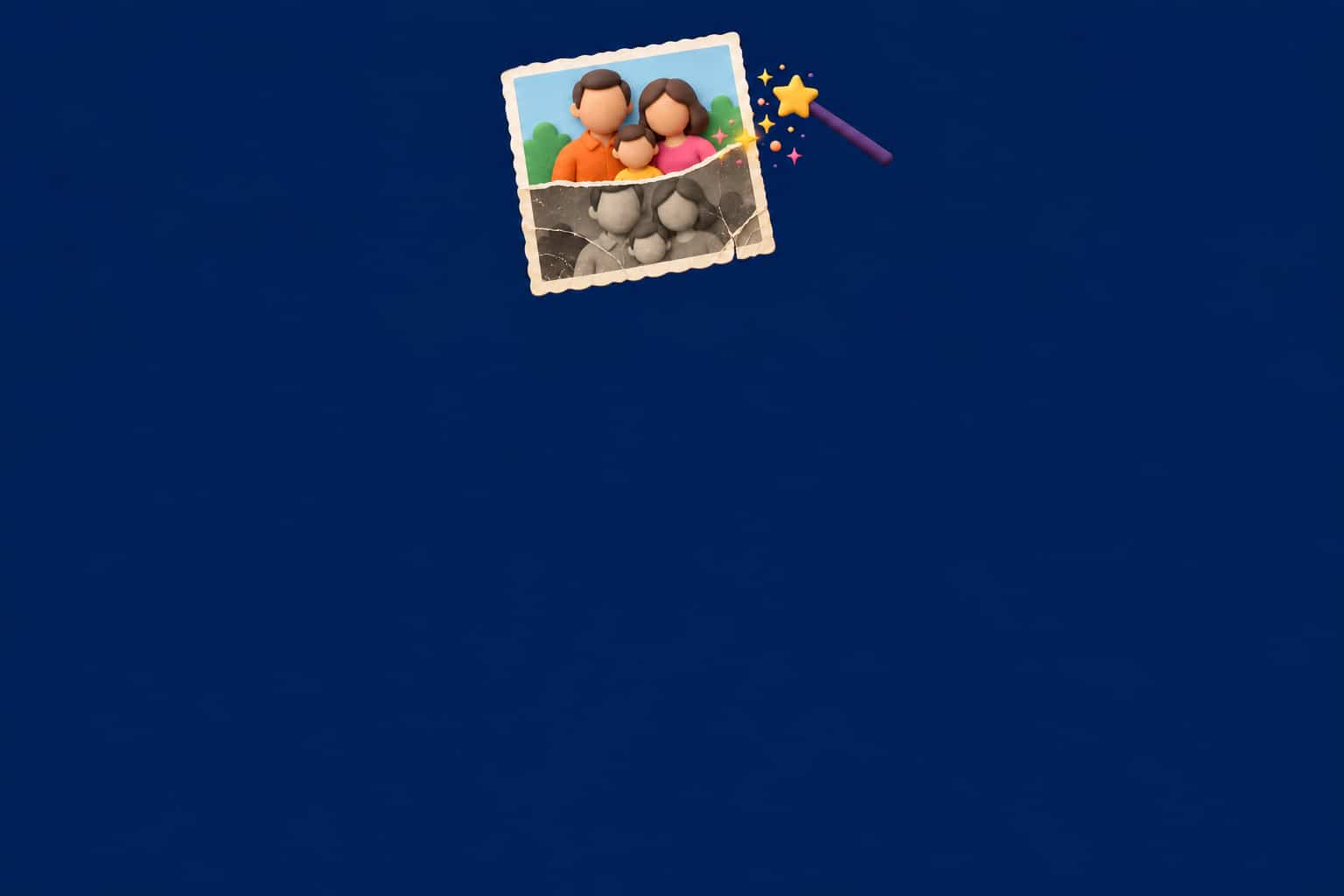
Swapping a background, erasing a stranger who wandered into the shot, reviving an old photo or rescuing a blurry image: an AI now does all of it in seconds, from a single sentence. And often for free. This guide shows you which tool to pick for each job, the method that actually works, and gives you ready-to-copy requests that get a good result on the first try.

The essentials
Yes, you can edit a photo with AI for free. The principle never changes: you upload your image, you describe the change in plain English, the AI does it.
The most versatile free options: Nation AI (no sign-up), ChatGPT and Gemini (nicknamed “Nano Banana”) to describe everything by keyboard.
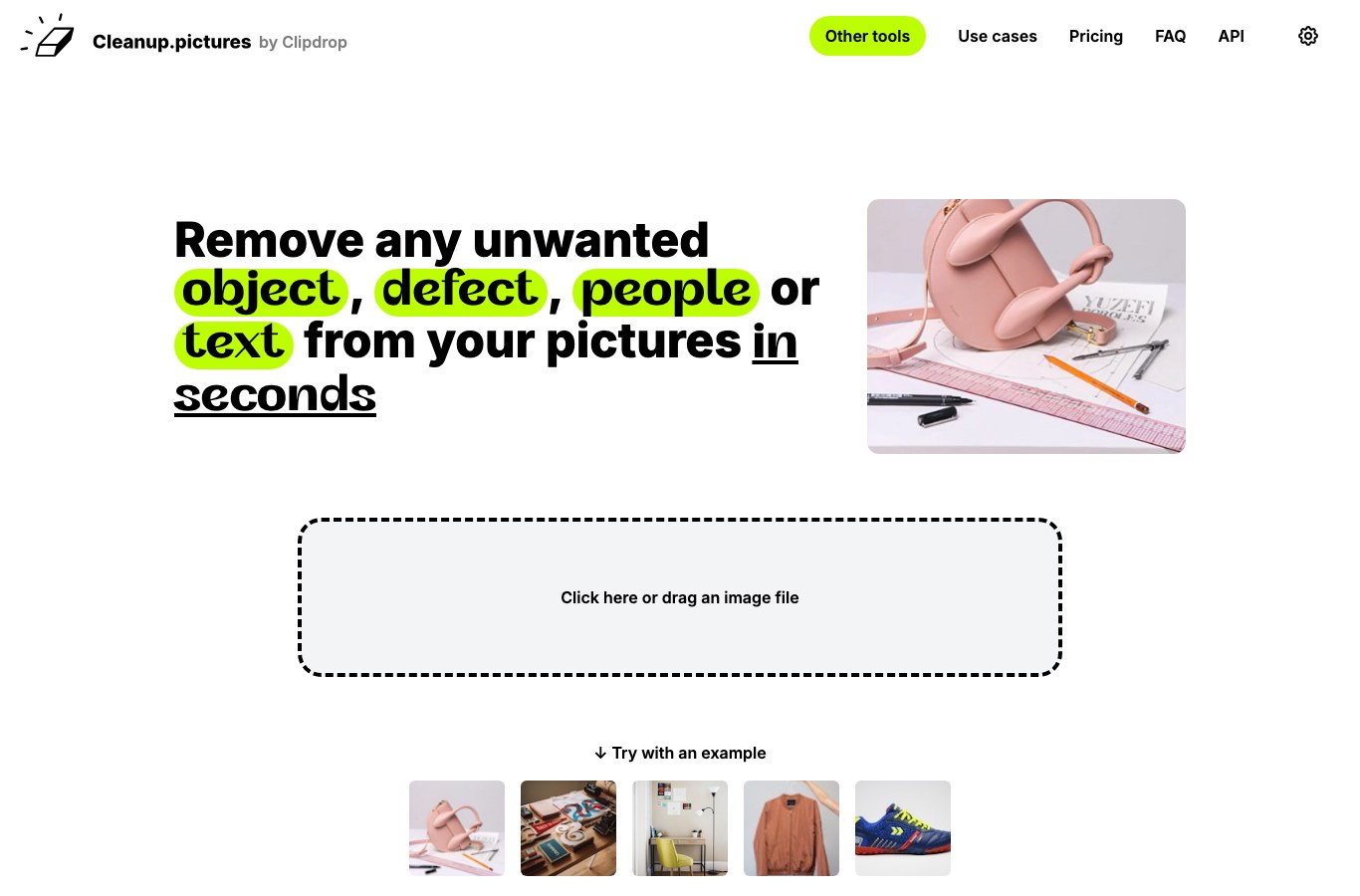
The one-click specialists: Remove.bg (cut out), Cleanup.pictures (erase an object), Upscayl (sharpen and upscale).
Use the picker below: choose your edit, copy the request, paste it into the AI of your choice.
The edit picker: your request, ready to copy
Each card matches a common edit. It names the free tool best suited to it and hands you a written request to copy and paste into the AI (once your photo is uploaded). Filter by type or search for a keyword.
What do you want to do with your photo?
13 edits, each with the recommended free tool and the prompt to copy. Upload your image to the AI first, then paste the request.
Erase an object or a person
Free, no account: Cleanup.pictures (brush), or just describe it to Nation AI / ChatGPT.
Here is my photo. Remove the person (or the object) in the background on the right and rebuild the scene naturally and realistically, leaving no trace and no blur. Keep everything else in the image strictly identical.
Cut out (remove the background)
Free, one click: Remove.bg or Photoroom (transparent PNG background).
Cut out the main subject of this photo and make the background transparent. Keep the edges precise, including the hair, and do not alter the subject's colors.
Change the background scene
Best pick: Gemini (Nano Banana), ChatGPT or Nation AI (you describe the new scene).
Replace the background of this photo with a beach at sunset, in warm and soft light. Keep the subject in the foreground exactly identical and adapt the shadows and lighting so the whole image looks coherent and realistic.
Sharpen a blurry image
Free: Upscayl (desktop app, runs locally) or the “enhance” tool in Pixlr / Fotor.
Improve the sharpness and the detail of this blurry photo, increase its resolution and reduce digital noise. Stay faithful to the original image: do not change the faces, the colors or the composition.
Restore an old damaged photo
Best pick: Gemini (Nano Banana) or ChatGPT (both excellent on faces).
Restore this old photograph: remove the scratches, stains and creases, correct the lighting and bring back sharpness. Absolutely preserve the faces, the clothing and the original period atmosphere, without reinventing them.
Colorize a black and white photo
Free: Palette.fm, or describe the scene to Gemini / Nation AI.
Colorize this black and white photo with natural, realistic colors suited to the period of the scene. Stay subtle and consistent: skin, sky, vegetation and clothing must all look believable, with no excessive saturation.
Retouch a portrait (skin, light)
Free: Fotor, Canva or YouCam (dedicated portrait retouching).
Retouch this portrait naturally: even out the skin tone slightly, soften temporary blemishes and improve the lighting on the face. Keep the person perfectly recognizable, with their real skin texture and features. Do not overdo anything.
Professional profile or resume photo
Best pick: Nation AI, ChatGPT or Gemini (neutral background plus outfit).
Turn this selfie into a professional profile photo: place me against a plain neutral background (light gray), with soft studio lighting and understated business attire. Keep my face strictly identical and recognizable, without changing my features.
Change hairstyle or hair color
Best pick: Gemini (Nano Banana) or YouCam (hairstyle try-on).
In this photo, change my hairstyle to a mid-length bob in light brown. Keep my face, my expression and the background identical; the hair must look realistic and blend correctly with the lighting of the photo.
Add or remove an element
Best pick: ChatGPT (generative fill) or Gemini.
Add a dog sitting next to the subject, on the grass, at a size and with shadows that match the scene. The rest of the photo must stay unchanged, and the result should look natural, as if the dog had always been there.
Turn the photo into a drawing or illustration
Free: Nation AI, ChatGPT or any AI editor with “styles”.
Turn this photo into a cartoon-style illustration, with soft outlines and vivid colors, while keeping the composition and the people recognizable. Aim for a clean, harmonious result.
Widen or extend the frame
Best pick: ChatGPT or Gemini (“outpainting”).
Extend this image on both sides to get a 16:9 landscape format. Continue the scenery naturally and consistently with what already exists, without distorting the main subject or adding any strange element.
Redecorate a room
Best pick: Gemini (Nano Banana) or ChatGPT, starting from a photo of the room.
Here is a photo of my living room. Show me a redecorated version in a bright, warm Scandinavian style: keep the structure, the walls and the windows in the same place, but change the furniture, the colors and the decor realistically.
No edit matches. Try another word (background, object, blur, hairstyle…).
Would rather not install an app? Upload your photo to Nation AI, paste a request and edit it right in the browser, no sign-up.
Editing a photo with AI for free, in 4 steps
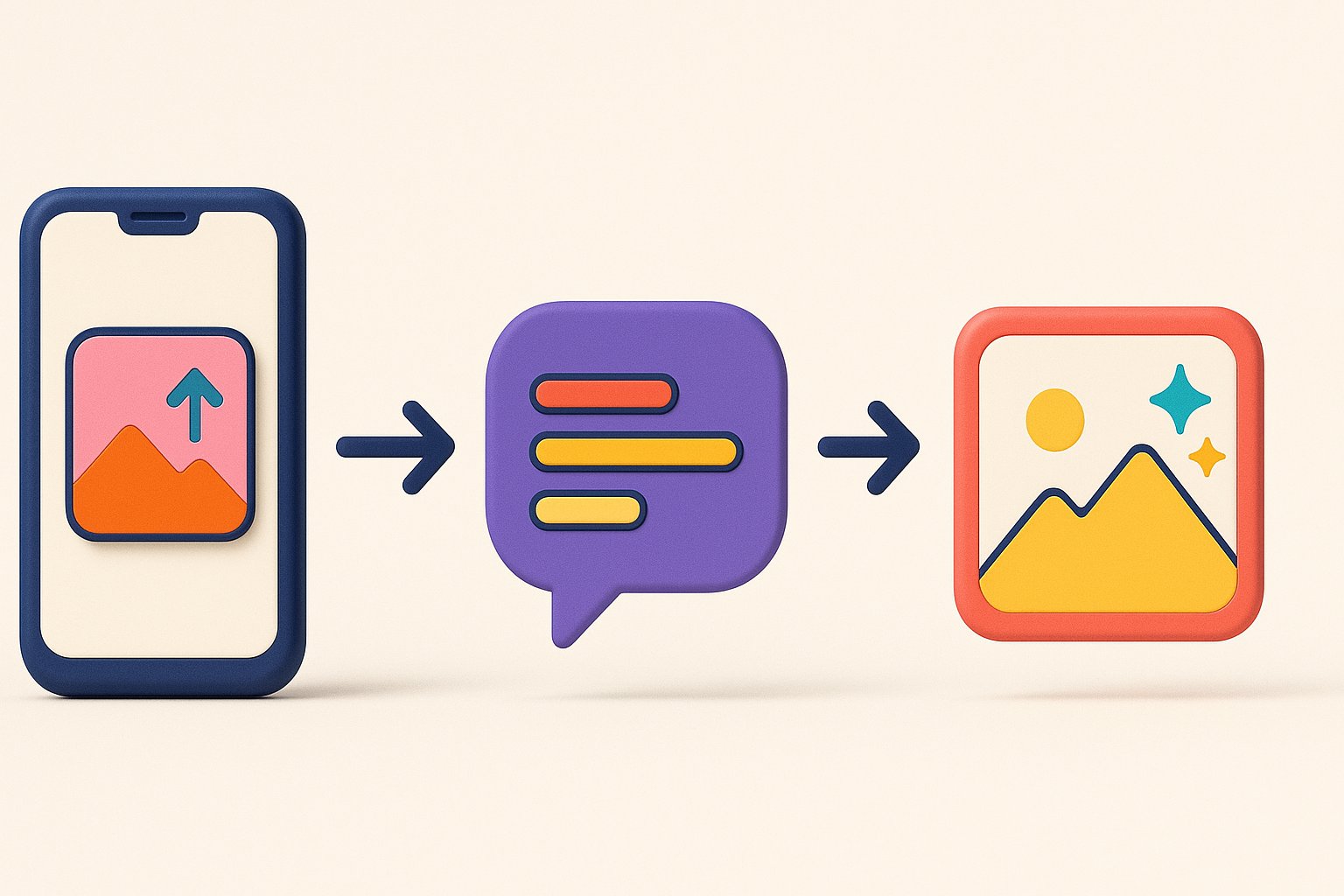
Whether you use an AI chat (Nation AI, ChatGPT, Gemini) or an online editor, the workflow is almost always the same. Here it is.
- Upload your photo. Click the “+” button, “Upload”, or the “Drop an image” area. Most tools accept JPG and PNG up to a few MB.
- Describe the change in one clear sentence. “Remove the car on the left”, “Give me a white background”, “Make the photo sharper”. One change at a time gives better results.
- Run it and look at the result. The AI returns a new version in seconds. Compare it with the original.
- Refine, then download. If it is not perfect, be specific (“keep the face identical”, “lighter background”) and run it again. Once you are happy, save the image.
The reflex that changes everythingAlways add “keep the rest of the image identical” to your request. Without it, the AI tends to redraw everything, including the parts you wanted to keep.
The best free tools to edit a photo
Two families share the field: AI assistants, where you describe everything by keyboard (perfect for complex edits), and one-click specialists (unbeatable for one precise task). Here are the safe bets, all usable for free.
| Tool | Best for | Free | No sign-up |
|---|---|---|---|
| Nation AI | Describing everything in plain words: background, objects, style | Yes (trial) | Yes |
| ChatGPT (built-in “Photoshop”) | Complex retouching, generative fill | Yes, daily quota | No (account) |
| Gemini (“Nano Banana”) | Editing while keeping the face, restoring | Yes, generous quotas | No (Google account) |
| Canva | Retouching plus layout, social media | Freemium | No (account) |
| Photoroom | Product backgrounds, e-commerce, cutouts | Freemium | No (account) |
| Pixlr / Fotor | Classic online editor with AI on top | Freemium | Partial |
| Cleanup.pictures | Erasing an object, a person, a text | Yes | Yes |
| Remove.bg | Cutting out in 5 seconds | Yes (low res) | Yes |
| Upscayl | Enhancing and enlarging without loss | Yes, open source | Yes (app) |
What is “Nano Banana”?It is the nickname of Google’s image model built into the Gemini app. Its strength is not creating from scratch but editing an existing photo while keeping the same face, which is very useful for portraits and family pictures. Basic access is free with a Google account, according to Google’s own documentation.
AI assistants or specialists: which one to pick?
- One precise task (cut out, erase, enlarge): go with the specialist, it is faster and usually needs no account.
- A transformation you can describe (“change the background, add this, in that style”): an AI assistant like Nation AI, ChatGPT or Gemini understands natural language.
- Creating an image from scratch rather than editing: see our online AI image generator and our image prompt examples.
Can ChatGPT edit a photo?
Yes. You can upload a photo to ChatGPT (the “+” icon in the message box) and describe the changes you want in plain language: erase an element, change the background, improve the lighting. Since a “Photoshop” style tool landed directly inside ChatGPT, these edits, element removal and generative fill included, are available to every account, free ones included, with a daily quota (roughly a dozen edits per day on the free tier).
Gemini works the same way with its “Nano Banana” model, and Nation AI lets you do the same without creating an account for a first try. To go further, our dedicated guide to image prompts, with 100+ examples to copy, covers both generation and retouching.
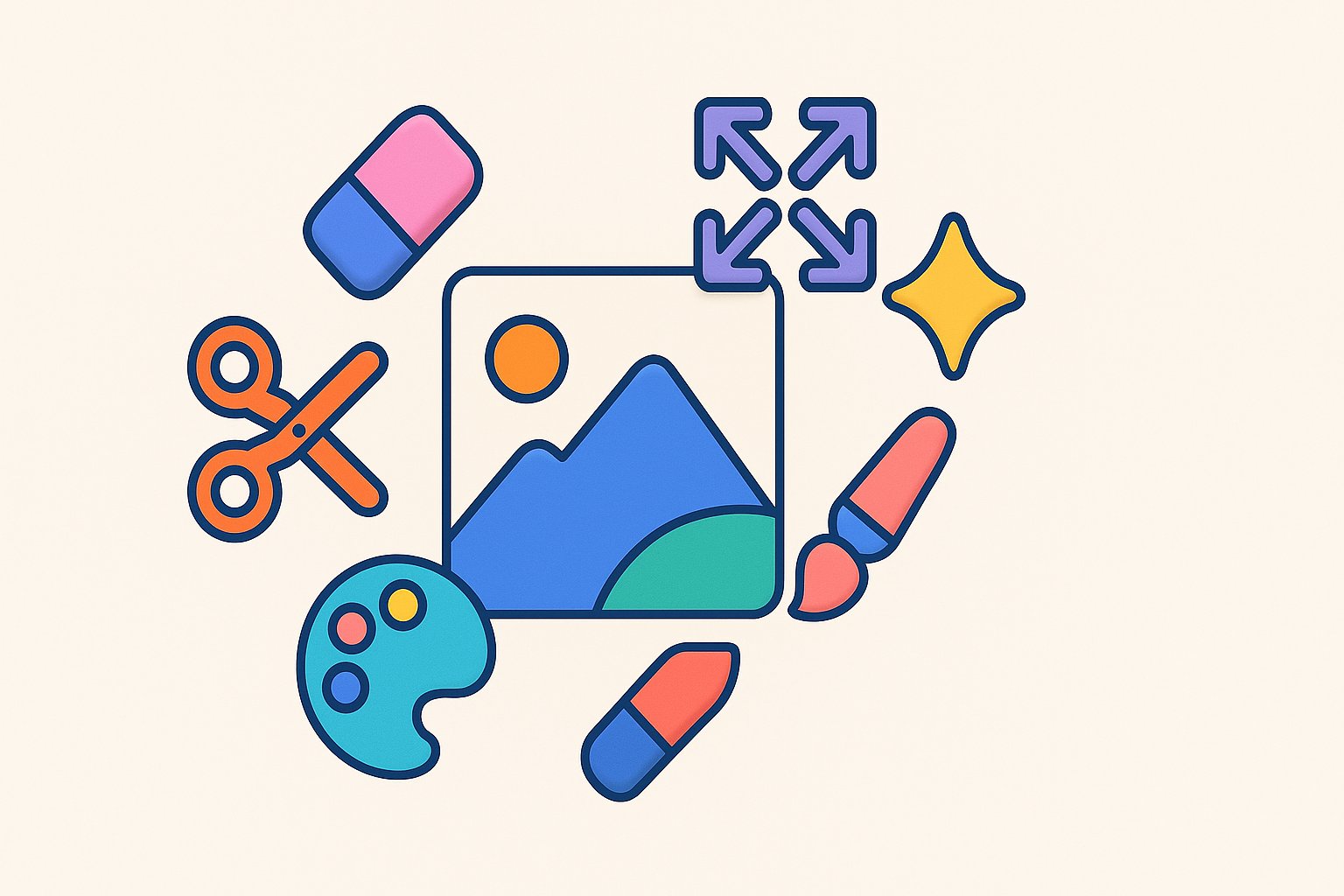
What AI can change in a photo
Here are the most requested edits, all doable for free with the tools above:
Change the background
Cut out
Sharpen
Restore an old photo
Colorize
Retouch a portrait
Change hairstyle
Extend the frame
Turn into a drawing
Pro profile photo
Redecorate a room
On the other hand, two limits come up again and again: pixel-precise retouching (an AI repaints an area, it does not move a cursor by a millimeter) and perfectly coherent text inside the image. For those cases, a classic editor remains a useful complement.
Writing a request that gets a good result
The quality of the output depends mostly on your request. A good instruction fits in one sentence and holds three ingredients: the action (what to do), the target (on which element) and what must be preserved.
“Improve my photo”
“Make this photo sharper and increase its resolution, without changing the faces or the colors.”
- One change at a time. Chain requests rather than stacking everything into a single sentence.
- Lock down what must stay. “Keep the face identical”, “do not touch the rest”: that is the key to successful edits.
- Be concrete. Name the color, the style, the lighting you want instead of a vague “better”.
- Iterate. The first result is a draft; correct it in one sentence.
Need inspiration for your wording? Our prompt generator helps you structure a request, and the AI tools hub gathers every assistant on the site.
Free, no sign-up: how far does it go?
“Free” does not mean “unlimited and with no strings”. Here is what to know before you start.
- Quotas. Free AI assistants cap the number of edits per day. One-click specialists are often unlimited but restrict the output resolution.
- Watermarks and low resolution. Some free tools add a logo or return a reduced-quality image, keeping high resolution for the paid plan.
- No sign-up. A handful work with no account (Cleanup.pictures, Remove.bg, and Nation AI for a first try). ChatGPT, Gemini and Canva do require one.
- “Uncensored / unrestricted”. Every major tool applies filters (no explicit content, no faking real people). To understand what the “no filter” alternatives are really worth, read our piece on uncensored AI image generators, keeping the legal limits below in mind.
Rights, personal data and deepfakes
Editing a photo with AI puts the responsibility on you. Three things to watch:
What not to doEditing someone’s photo without their consent, putting them in a misleading situation or creating a “deepfake” of a real person can violate their likeness and privacy rights, and in a growing number of states it is now a crime. Only retouch your own images, or ones you have permission to use.
- Personal data. A photo you upload may be stored on the tool’s servers. Avoid sending sensitive images (ID documents, children, private information). Tools that process the image locally (like Upscayl) are the most privacy-friendly.
- Copyright. You cannot freely retouch and republish a photo you did not take.
- Transparency. An AI-edited image is still an edited image: say so when the context calls for it (news, classified ads, profiles).
To go further on protecting your pictures, see our report on the Facebook AI threat and how to protect your photos and data.
Frequently asked questions
How do you edit a photo with AI for free?
Upload your photo to a free AI tool (Nation AI, ChatGPT, Gemini, or a specialist like Cleanup.pictures), describe the change in one sentence, “erase the car on the left”, “give me a white background”, then run it and download the result. Our picker at the top of the page gives you the exact request to copy for each type of edit.
What is the best free AI to edit a photo?
There is no single winner: it depends on the task. To describe everything by keyboard, Nation AI is very convenient (no sign-up). Gemini (“Nano Banana”) excels at editing a photo while keeping the face. To erase an object, Cleanup.pictures; to cut out, Remove.bg; to sharpen, Upscayl.
Can ChatGPT edit a photo?
Yes. You upload the image with the “+” icon and describe the edit. Since a “Photoshop” style tool was built into ChatGPT, element removal and generative fill are available to every account, free ones included, with a daily quota.
Can you edit a photo with AI without signing up?
Yes, with some tools. Cleanup.pictures and Remove.bg run straight in the browser with no account, and Nation AI allows a first try without signing up. ChatGPT, Gemini and Canva, on the other hand, require an account.
Can AI make a blurry photo sharp?
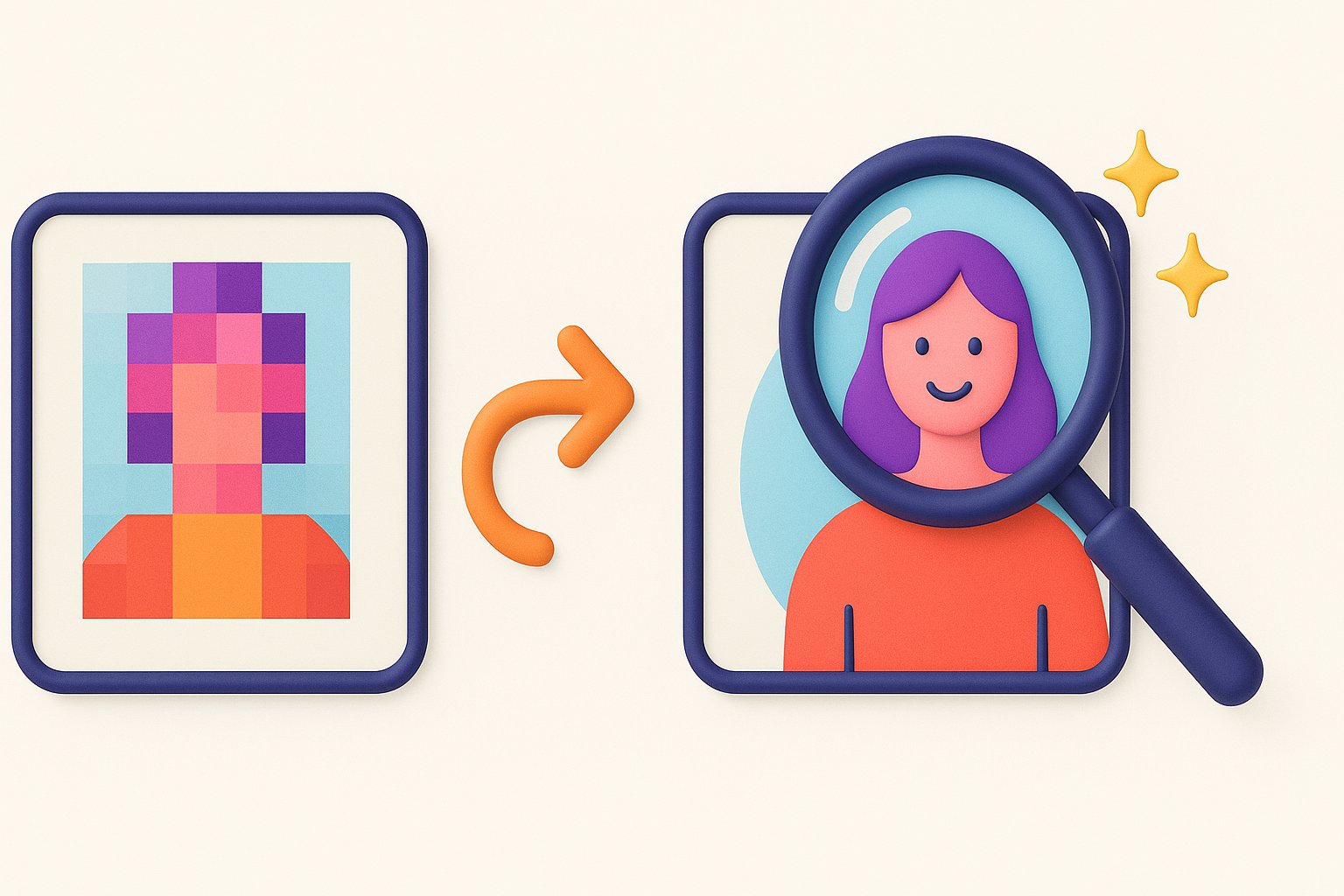
Yes, up to a point. Tools like Upscayl, Pixlr or Fotor increase the resolution and recover detail. The AI “rebuilds” the missing areas: on a very blurry photo the result looks better, but it will not bring back detail that was never captured.
Do the photos I upload stay private?
Not always. Many online tools temporarily store your images on their servers. Avoid sending sensitive documents, and prefer tools that process the image locally (like Upscayl) for private content.
Edit your photo right now
Upload your image to Nation AI, describe the edit and get the result in seconds. Free to try, no sign-up.