

The essential takeaway: Google provides no official switch to disable AI Overviews, embedding them deeply into standard search results. Fortunately, bypassing this feature is possible by utilizing the “Web” filter to restore a classic experience. The most reliable workaround involves automatically appending the specific &udm=14 parameter to URL queries, effectively blocking AI generation.

Sick of scrolling past robotic clutter and desperately trying to disable google ai previews to get your clean results back? Since there is no official off switch (thanks, Google), we have curated the specific workarounds to effectively bypass this forced feature. Discover the exact browser tweaks and the smart “Web” filter trick that will restore the classic search experience you actually miss.
The Hard Truth About Google’s AI Previews
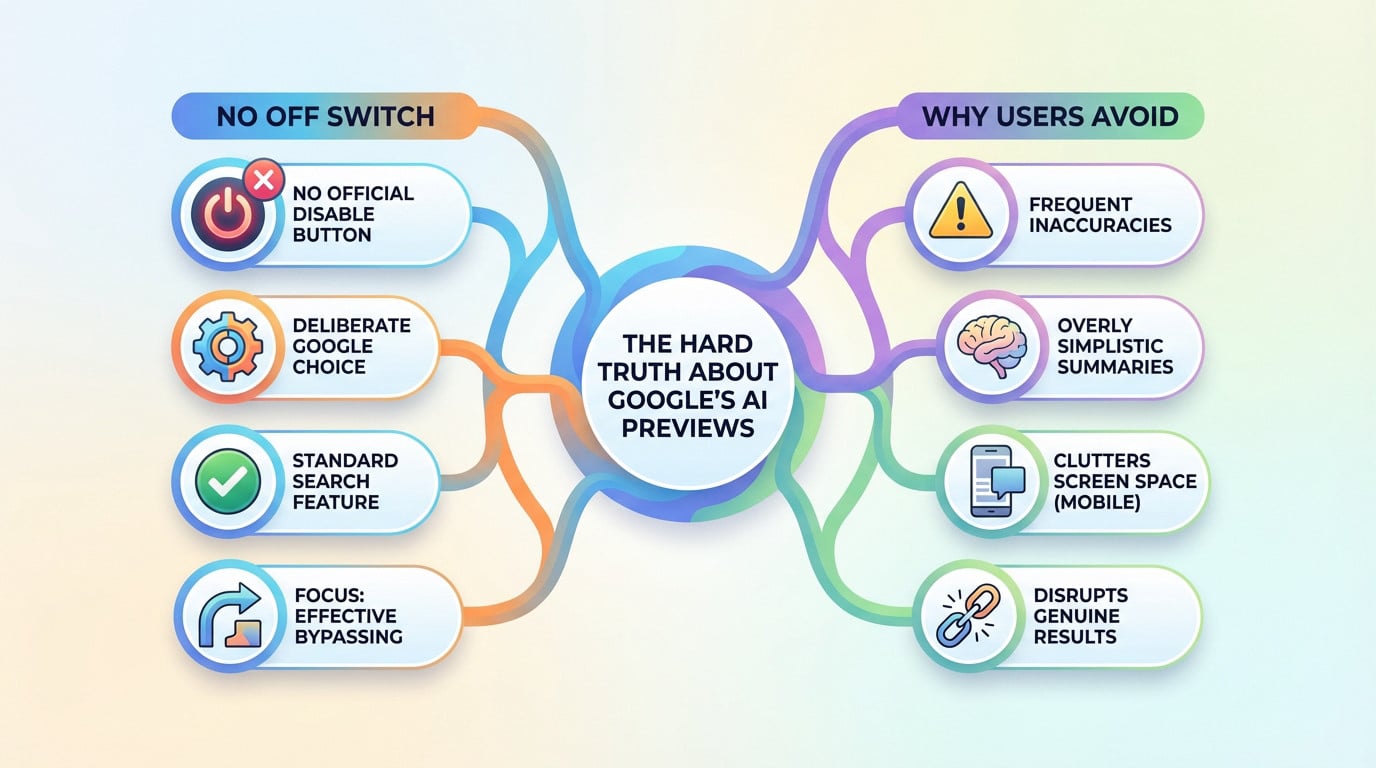
Let’s Be Clear: There’s No Off Switch
You won’t find an official setting to disable google ai previews. This is a deliberate choice by them, not an oversight.
What began as a Search Labs experiment is now the standard experience. The goal isn’t to turn it off, but to bypass it effectively.
Why You’d Want to Ditch Them Anyway
These summaries are often inaccurate or just hog valuable screen space. It’s a mess, especially when browsing on mobile.
The problem isn’t just the space they occupy; it’s the frequent display of unhelpful, sometimes incorrect, information that disrupts the search for genuine results and traditional links.
Desktop Workarounds to Reclaim Your Search Results
Now that we’ve established you can’t just flip a switch, let’s talk about the practical steps you can actually take on your computer.
The “Web” Filter: Your Best Bet
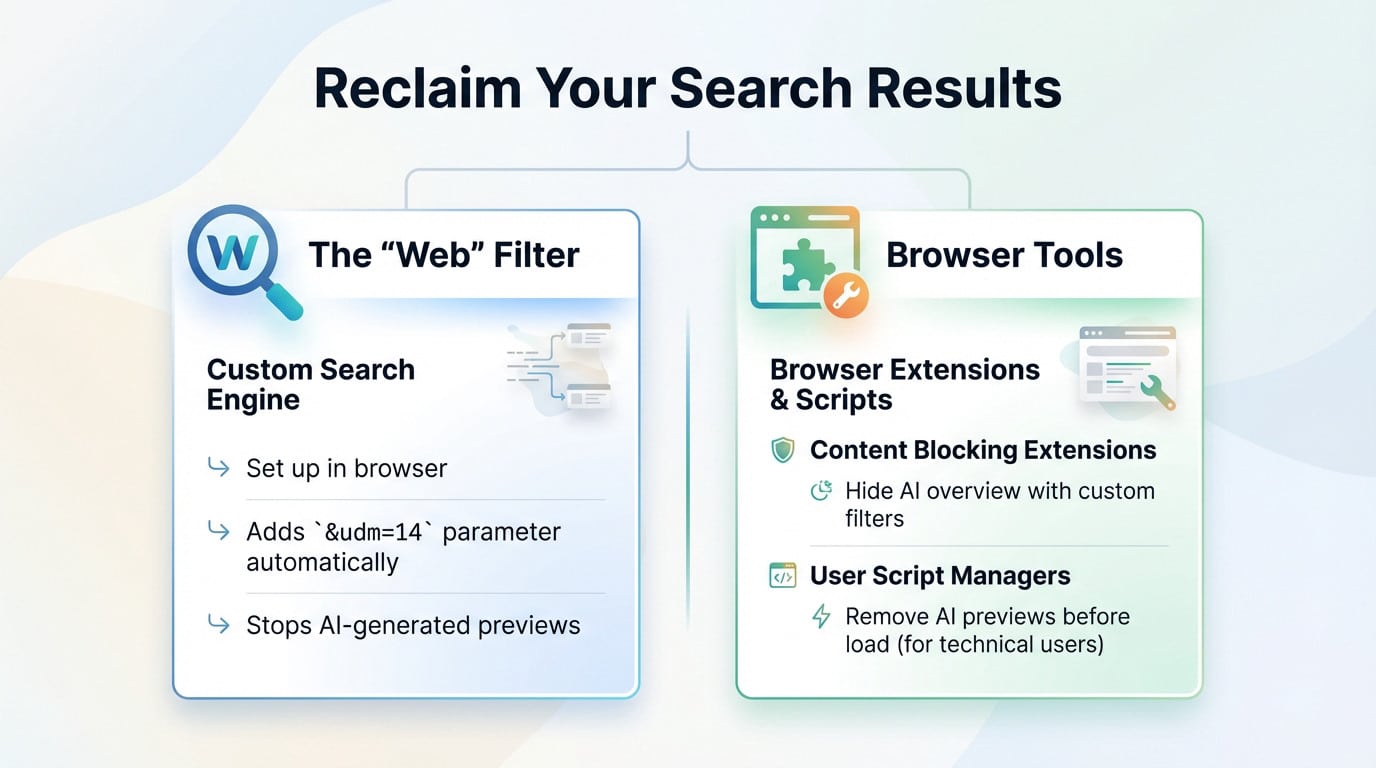
The smartest move to disable google ai previews is forcing Google to display only “Web” results. It keeps the clutter out of your sight.
The most reliable way to stop seeing AI-generated previews is to set up a custom search engine in your browser that automatically adds the `&udm=14` parameter to your Google searches.
Browser Tools for a Cleaner View
If you prefer keeping the standard view, browser add-ons can scrub the page clean for you.
- Content blocking extensions: These can be configured with custom filters to visually hide the AI overview section.
- User script managers: For more technical users, these allow you to run small scripts that remove the AI preview elements before they even load.
Broader Strategies to Avoid Google AI
If tinkering with browser settings isn’t your style, there are more straightforward, if drastic, methods to change your search experience entirely.
Consider Switching Your Search Engine
The only sure way to disable google ai previews is walking away. Competitors like DuckDuckGo still respect the traditional results you actually want.
| Search Engine | AI Previews | Focus |
|---|---|---|
| Yes, integrated | AI-driven summaries | |
| Alternatives (e.g., DuckDuckGo, Bing) | No (or different implementation) | Traditional link-based results and privacy |
Minor Tweaks to Google’s Settings
You can’t hit a magic “off” switch, but you can starve the beast. Adjusting specific preferences helps minimize the intrusion.
- Turn off “autocomplete with trending searches” to limit predictive interference.
- Change your region setting, as the AI feature rollout can vary geographically.
While Google refuses to offer a simple “off” switch for AI Previews, you aren’t out of options. Whether relying on the “Web” filter, installing extensions, or jumping ship to another engine, you can reclaim your digital sanity. The robots haven’t won just yet—go enjoy your clutter-free results