
The short version

- AI haircut try-ons work well, but the free tier runs out fast: at YouCam one hairstyle costs 2 credits and signing up gives you 5, so two tries, watermark included.
- Fotor and YouCam stamp a watermark on every image exported from their free plan. MyEdit gives 3 credits per day, the most generous free tier of the lot.
- insMind shows no free plan at all on its pricing grid: it opens straight at 5.83 dollars a month billed yearly.
- No try-on tells you which cut actually suits you. That comes down to the geometry of your face: the tool below works it out in three questions and hands you the prompt to copy.
Changing your hair is scary for one simple reason: you live with it for months. Hence the pull of AI haircut try-ons, which promise to show you the result before the scissors come out. Technically the promise holds. Economically, much less: behind the word “free” printed in big letters, most of these services hand you two or three attempts, then stamp a watermark across your photo.
We opened each service’s official pricing page on July 30, 2026 and recorded, line by line, what the free plan really allows. The screenshots that prove it are below. And because none of these tools answers the question that matters, which cut will actually suit you, we added a tool that works out your face shape in three questions and gives you the matching haircut, with a prompt ready to copy.
What an AI haircut tool actually does
Two very different technologies share the “AI haircut” label, and they give neither the same result nor the same bill.
The catalog try-on
The AI finds your hair in the photo, cuts it out, and swaps in a style picked from a closed library. The render is clean and fast, but you are stuck with the cuts on offer.
YouCam, Fotor, MyEdit, insMind
The open image generator
You describe the cut you want in words and the model regenerates the hair area. No style limit at all, but the result rests entirely on how well you describe it.
Nation AI, ChatGPT, Gemini
The difference that countsA catalog try-on drops an existing style onto your face. An open generator invents the cut you describe. The first reassures, the second explores. To test one precise idea you saw in a photo, only the second can reproduce it.
Either way the principle is the same: the AI works on the pixels of your photo, not on your hair. It has no idea how much of it you have, how it grows, or what your stylist can actually do with it. We come back to this below, it is the single most important limit to know.
The 5 AI hairstyle tools and their real free tier
Here is what each service lets you do without paying, recorded on July 30, 2026 from its own pricing pages. Amounts appear in the currency each page displays: YouCam and Fotor quote euros even on their English pages, MyEdit and insMind quote dollars.
| Service | What free gets you | Watermark on free | First paid plan |
|---|---|---|---|
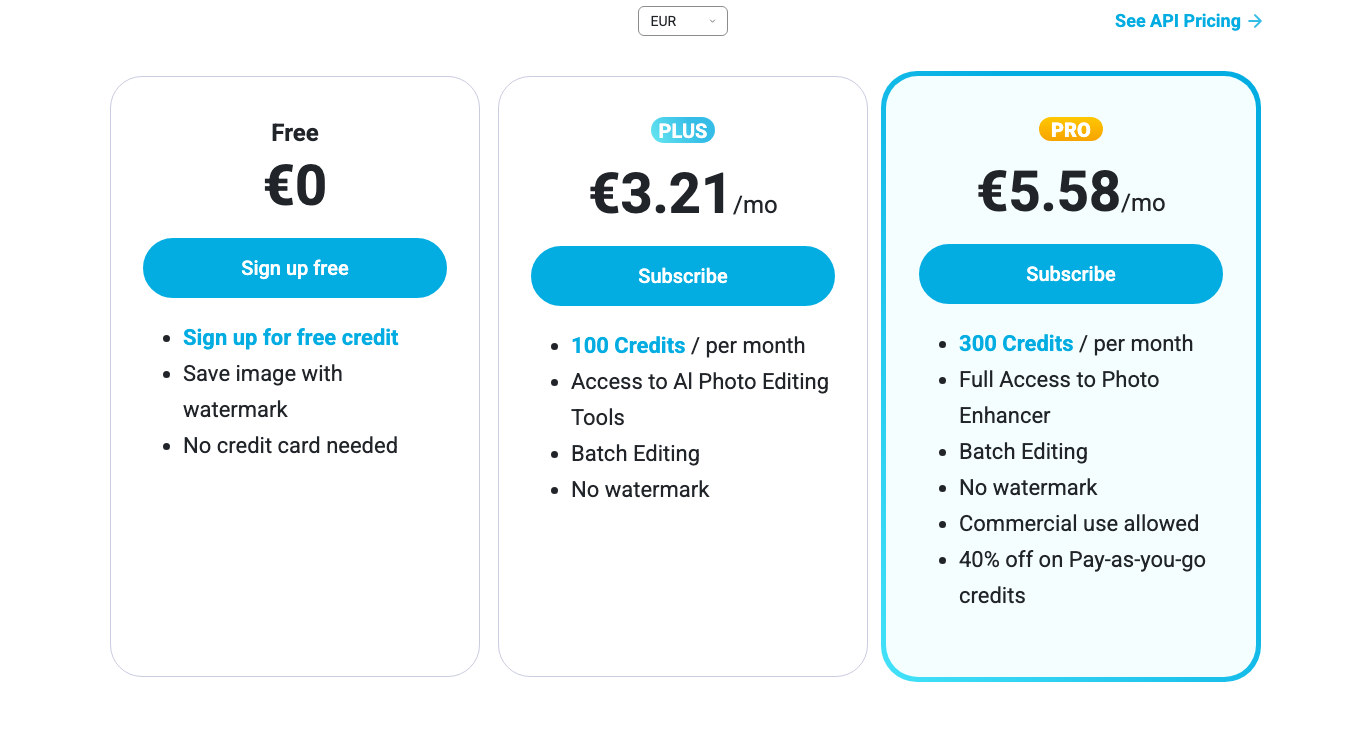
| YouCam (Perfect Corp) | 5 credits at sign-up, one hairstyle costs 2 credits | Yes | 3.21 euros/month, 100 credits |
| MyEdit (CyberLink) | 3 credits per day, renewed | No, the page says “No watermark” | 7 dollars/month (84/year), 500 credits |
| Fotor | “Limited Free credits”, 1 generation at a time | Yes | 3.41 euros/month, 1,200 credits/year |
| insMind | No free plan shown on the pricing grid | Paid plans list “No watermark” | 5.83 dollars/month billed yearly (69.99/year) |
| Nation AI / ChatGPT | Generates from your own photo, quota depends on the plan | No | Nation AI subscription, priced in euros |
YouCam, the fullest catalog and the fastest to run dry
It is the best known name of the group, and the catalog really is the deepest: its English page advertises more than 200 hairstyles to try on, with a mobile app alongside the web version.
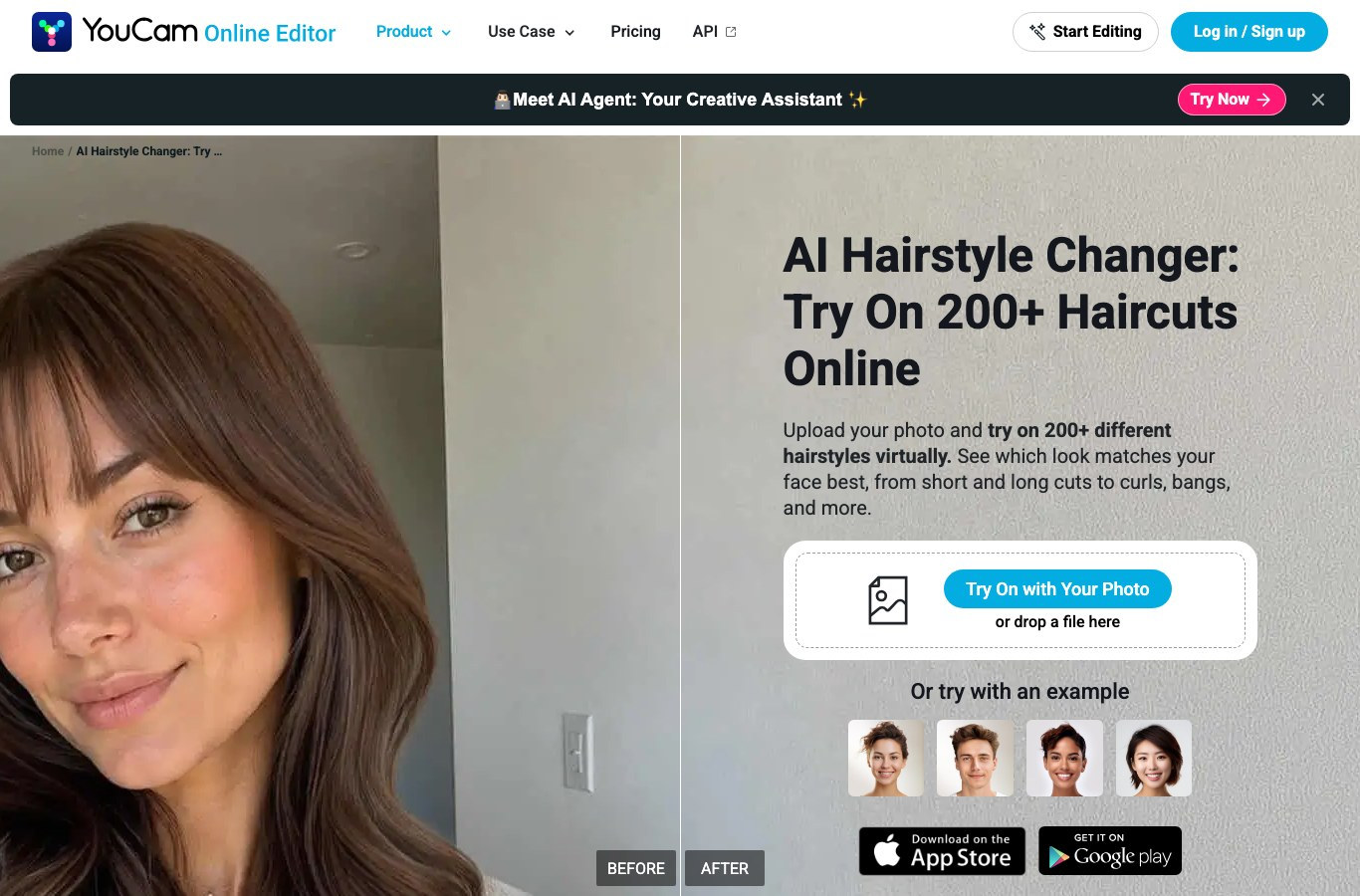
The detail nobody mentions sits in the plan comparison table on its pricing page. The AI Hairstyle Generator is billed at 2 credits per use, and the free plan hands you 5 credits at sign-up. Two hairstyles, then, before you have to pay. Hair color is capped separately, at one use per day.
Verified July 30, 2026
Second thing to know: on the free plan, the watermark-free line is crossed out. The plan card spells it out, “Save image with watermark”. Commercial use only opens up at the Pro plan, 5.58 euros a month.
MyEdit, the most generous free tier
Published by CyberLink, MyEdit runs the same upload-and-pick mechanic, with a catalog of cuts and colors. Its free plan is the only one here that refills on its own: 3 credits per day, stated in black and white in its plan comparison, plus 5 GB of storage. The AI hairstyle draws on those credits.
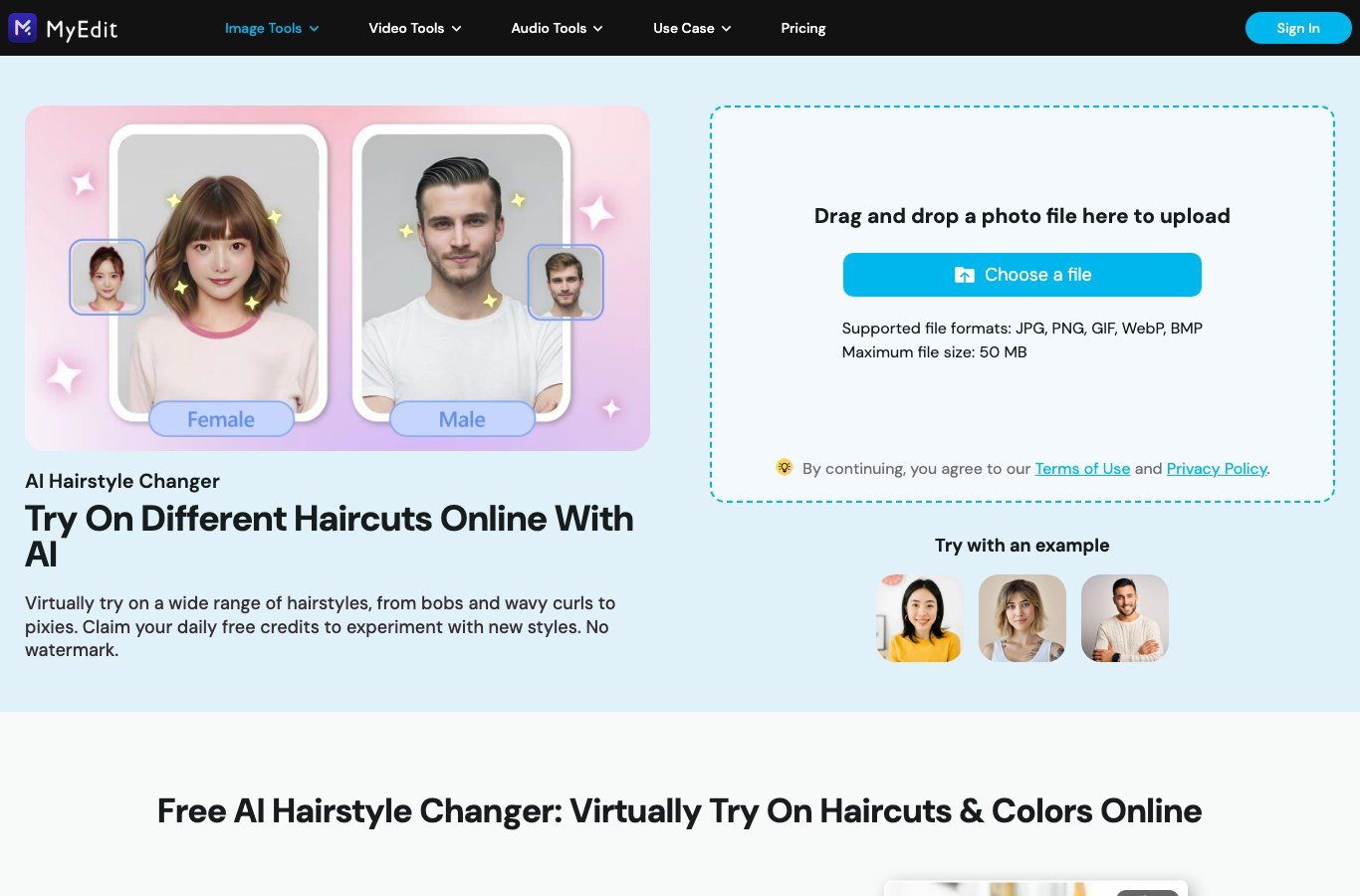
Three credits a day is not a lot of attempts, but across a week it is plenty to explore a dozen directions before a salon appointment. The tool page also states “No watermark”, which no other free tier in this roundup does, and the pricing grid is identical in every locale we opened.
Fotor, convenient but watermarked
Fotor plays the simplicity card: upload the photo, pick from its catalog of men’s and women’s cuts, get the result straight away. Its Basic plan is presented as “Free forever”, with “Limited Free credits” whose number is never given.
Verified July 30, 2026
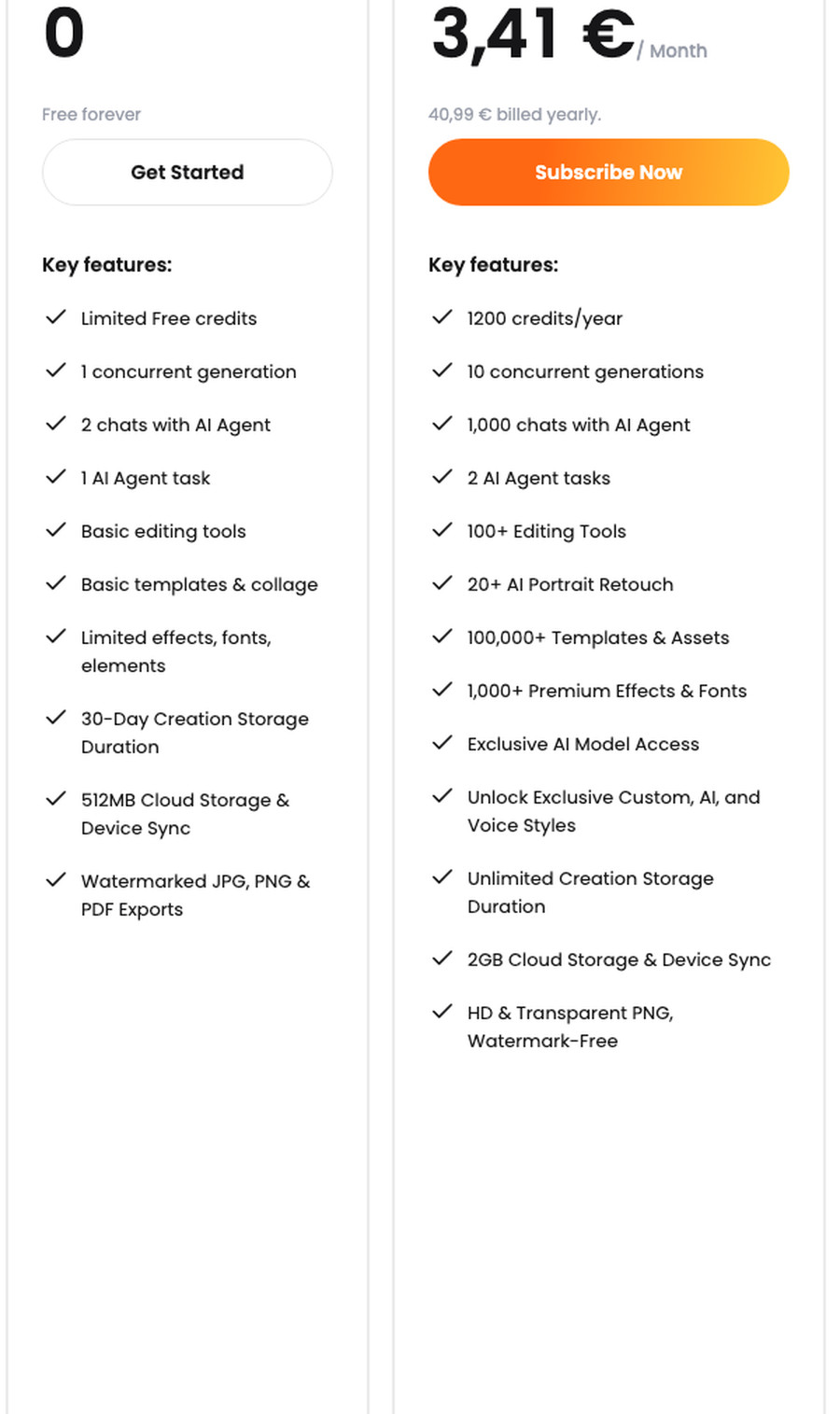
That last line of the Basic card settles the question: “Watermarked JPG, PNG & PDF Exports”. You have to move up to Pro, 3.41 euros a month billed yearly, to get a clean image. Worth noting too, creations made on the free plan are only stored for 30 days.
insMind, the one that shows no free plan at all
insMind takes the opposite approach to everyone else. Where the others put “free” on the landing page and reveal the limits three clicks later, its pricing page carries no free column whatsoever: the grid opens straight on Basic, then Pro, then Ultra. Its AI Hairstyle Changer works like the rest, upload a portrait and pick a cut from a catalog.

The entry ticket is 5.83 dollars a month billed yearly, which means 69.99 dollars charged up front, for 1,000 credits a month and up to 100 images. Pro sits at 25 dollars a month (299.99 a year) with 5,000 credits, and Ultra at 100 dollars. All three tiers advertise “No watermark” as a paid feature, which tells you in reverse what an unpaid export would look like.
Read the pricing page, not the landing pageThe same publisher does not always show the same grid depending on your browser language and region, and the landing page rarely matches the plan table. Before concluding that a service has no free tier, open its pricing page yourself and read the comparison. We did it for YouCam and MyEdit in two locales: the plans and the amounts match.
Nation AI and general-purpose generators
The last route, and often the most flexible: go through an image generator that accepts a photo as input. You upload your portrait, describe the cut you want, and the AI regenerates the hair area. No catalog limits you, and it is the only method that can reproduce one specific cut you saw somewhere else. In exchange, everything rests on your description, and that is exactly what the tool in the next section helps you write.
The watermark, the real price of free

With music or video, a free plan mostly runs into a quota. With hair try-ons, three locks stack up, and the first one is the one you find out about last.
- The watermark. It shows up at export time, not during the try-on. You happily test ten cuts, then discover the publisher’s logo stamped across the file you downloaded. That is the case at YouCam and at Fotor.
- The credit counter. Two attempts at YouCam, three a day at MyEdit. The word on the landing page (“free”) and the number in the plan table (“2 credit(s)”) are never shown in the same place.
- The license. At YouCam, commercial use only opens at the Pro plan. If your simulation is meant for a salon, a professional post or a client record, the free plan does not cover it.
The yearly billing trapThe headline prices (3.21 or 3.41 euros a month, 5.83 dollars at insMind) are yearly rates, charged in one go. At Fotor, 3.41 euros a month means 40.99 euros taken immediately; at insMind, 5.83 dollars a month means 69.99 dollars. Check the monthly or yearly toggle before you confirm, if you only want to test for a month.
Find your face shape in three questions
This is the question people actually type, and the one no try-on answers: what haircut suits my face. The tools show you a style dropped onto your photo, they do not tell you whether it flatters you. That logic comes down to the geometry of your face, and it is the first thing a stylist looks at.
Answer the three questions below in front of a mirror, hair pulled back. The tool identifies your shape, gives you the cuts that flatter it, the ones that work against it, and the exact prompt to paste into an image generator.
Which haircut for your face
Three questions, one face shape, the cuts that work and the prompt to copy.
Waiting
Answer the three questions above, then click the button. Your face shape and the matching haircuts will appear here.
The 6 face shapes and the haircuts that suit them

The principle has never changed in hairdressing: the cut corrects the proportions. A round face is handled by lengthening it, a long face by widening it, an angular face by softening it. Here are the six cases and, for each one, the prompt to copy into an image generator to test the cut on your own photo.
Oval face
Slightly longer than it is wide, soft outline, forehead and jaw close in width. It is the balance point stylists treat as the reference.
What works: almost everything. Bob, pixie, long layers, blunt bangs or curtain bangs. Take advantage of it and choose by hair texture rather than by face shape.
Watch out for: very heavy volume on either side of the cheeks, which ends up rounding out an oval.
Keep my face strictly identical and replace only my hair. Cut: long collarbone-length bob with soft layers, middle part, loose movement. Front-facing photo, natural light, photorealistic. Do not change my features, my skin tone or my clothes.
Round face
Width and length nearly equal, full cheeks, a soft chin, no sharp angle anywhere on the outline.
What works: anything that lengthens. Volume at the crown, long layers falling below the chin, a side part, vertical face-framing pieces.
What to avoid: the blunt bob that stops right at cheek level, thick blunt bangs, and side volume that widens things further.
Keep my face strictly identical and replace only my hair. Cut: long layers falling well below the chin, deep side part, clear volume at the crown with the hair kept flat at the sides, thin face-framing pieces. Front-facing photo, natural light, photorealistic. Do not change my features or my skin tone.
Square face
Wide, angular jaw, straight forehead of comparable width, length and width fairly close. A very graphic outline.
What works: anything that softens. Waves, feathered layers, lengths that clear the jaw, open curtain bangs, a side part.
What to avoid: the blunt cut that stops exactly at the jawline, and sharp horizontal lines that underline the angle.
Keep my face strictly identical and replace only my hair. Cut: wavy lengths falling well below the jawline, feathered ends, curtain bangs open on both sides of the forehead, side part. Front-facing photo, natural light, photorealistic. Do not change my features or my skin tone.
Long or oblong face
Clearly longer than it is wide, often a high forehead, sometimes angular edges. Height dominates visually.
What works: anything that widens and shortens. Bangs (curtain or blunt) to cut the forehead down, volume at the sides, a shoulder-length cut, curls.
What to avoid: very long, flat, volume-free lengths that stretch the face further, and height piled on top of the head.
Keep my face strictly identical and replace only my hair. Cut: shoulder length, curtain bangs covering the top of the forehead, volume and waves at the sides around the cheekbones, no volume at the crown. Front-facing photo, natural light, photorealistic. Do not change my features or my skin tone.
Heart-shaped face, or inverted triangle
Wide forehead, strong cheekbones, narrow and pointed chin. The face tapers sharply toward the bottom.
What works: anything that adds volume low down. A long bob ending below the chin, curls at jaw level, curtain bangs to cut the forehead, textured lengths.
What to avoid: volume concentrated at the crown, and very short cuts that expose the whole forehead and make it read wider still.
Keep my face strictly identical and replace only my hair. Cut: long bob stopping just below the chin, textured ends and volume concentrated at jaw level, light curtain bangs on the forehead, no added volume at the crown. Front-facing photo, natural light, photorealistic. Do not change my features or my skin tone.
Triangle face
The opposite of the previous one: narrow forehead, wide jaw, the face broadens toward the bottom.
What works: anything that fills out the top. Volume at the crown and the temples, a short or mid-length layered cut, a shape that clears the jaw rather than covering it.
What to avoid: flat, heavy lengths hanging along the jaw, and hair slicked flat on top.
Keep my face strictly identical and replace only my hair. Cut: mid-length layers with plenty of volume at the crown and the temples, lengths tucked behind the ears to free the jawline, airy movement. Front-facing photo, natural light, photorealistic. Do not change my features or my skin tone.
Landing between two shapes is normalFew faces fit one box perfectly. If you hesitate between two, apply the advice for the more pronounced feature: a very angular jaw outweighs an in-between length, a clearly wider forehead outweighs the rest.
How to get a believable result in 5 steps

Bad results almost always come from the source photo, not from the model. Here is the method that works whatever tool you pick.
- Shoot yourself head on, hair clear of your face. No cap, no strand falling over an eye, no three-quarter angle. The AI has to see your hairline and the full outline of your face to replace it cleanly.
- Find neutral, diffuse light. A window to the side, in daylight, no direct sun. Hard shadows create artifacts along the edges of the hair, and flash flattens volume.
- Frame wide. Leave room above your head and down to your shoulders. A tight crop stops the AI from drawing a cut with more volume or more length than your current one.
- Describe the cut, not the vibe. “Stylish cut” means nothing to a model. “Long layered bob stopping below the chin, side part, feathered ends” gives you something usable. The prompts in the previous section are written on that pattern.
- Lock your face into the instruction. Always add “keep my face strictly identical, do not change my features or my skin tone”. Without that line, open generators tend to smooth your features at the same time as they change your hair.
“Change my haircut to something modern that suits me.”
“Keep my face strictly identical and replace only my hair: long layered bob stopping below the chin, side part, feathered ends, natural medium brown.”
If you are starting from a poor photo, fix it before the try-on rather than after. Our guide to editing a photo with AI for free covers the tools that denoise and recrop a portrait properly, and our library of image prompt examples gives you more wording you can reuse.
What the AI cannot see
This is the part these tools’ pages never mention, and the one that causes the disappointment in the salon chair. A try-on works on a two-dimensional image. It knows nothing about the actual material your hair is made of.
- Density. A cut that assumes thick hair, rendered on fine hair, will not hold the volume the simulation shows.
- Texture and curl pattern. The render usually shows hair straightened in a studio. On wavy, curly or coily hair, the same length gives a completely different silhouette, with a shrinkage out of the shower that the image does not predict.
- Cowlicks and hairlines. A part that refuses to sit, a cowlick at the nape, a receding hairline at the temples: physical constraints the AI smooths over without knowing they exist.
- Upkeep. A simulation shows day one, not the cut six weeks later, and not the daily blow-dry it demands.
How to use a simulation properlyTreat the image you get as an inspiration shot to show, not as a promise of results. It explains an intention to your stylist in fifteen seconds, which no verbal description does as well. They are the one who will tell you whether your hair can hold that shape.
Your photos and your data
A hair try-on asks you for the one piece of biometric data you carry around all day: your face. Three reflexes before you upload anything.
Look first at the retention period the service announces. It varies a lot from one tool to the next, from a few dozen hours to unlimited depending on the plan, and it usually sits in the privacy policy rather than on the product page. Next, check whether the publisher reserves the right to reuse your images to train its models, a common clause on free tiers. Finally, never upload someone else’s photo, and least of all a child’s, without their agreement: a face scan counts as biometric data, and several states regulate it directly. Illinois’ Biometric Information Privacy Act (BIPA) is the strictest of them, requiring informed written consent before a company collects biometric identifiers, and Texas and Washington have their own versions.
The simplest habitTake a photo dedicated to the try-on, against a plain wall, with no identifiable background and nobody else in the frame. You get a cleaner cutout out of it, so a better render.
AI haircut FAQ
Is there a genuinely free AI haircut tool?
Yes, but with strict limits. MyEdit gives 3 credits per day, which renew and let you test over time. YouCam gives 5 credits at sign-up, so 2 hairstyles at 2 credits each, and adds a watermark. Fotor advertises “Limited Free credits” without ever putting a number on them, and watermarks exports as well. insMind shows no free plan at all. None of the five offers unlimited, watermark-free use.
How do I know which haircut suits my face?
By identifying the geometry of your face first, then picking a cut that offsets its dominant proportion: you lengthen a round face, widen a long face, soften a square face, rebalance the bottom of a heart-shaped face and the top of a triangle face. The tool earlier in this article makes that call in three questions and gives you the matching cuts.
Do AI hairstyle try-ons work for men too?
Yes, every service tested has separate men’s and women’s catalogs, and both Fotor and MyEdit show the two right on their landing page. YouCam adds a beard generator, billed at 2 credits per use like the hairstyles. The face shape logic laid out here applies in exactly the same way, on tapers, fades and crops as much as on bobs.
Can I try a haircut without downloading an app?
Yes. YouCam, Fotor, MyEdit and insMind all run straight in the browser, on desktop and on mobile. The iOS and Android apps exist alongside them, not instead of them. Watch the “no sign-up” wording though: trying is often possible without an account, but downloading the result almost always requires registering.
Can I test a hair color as well?
Yes, and it is often more generous than the cut. YouCam’s AI Hair Color is listed at one use per day on the free plan, separately from the credit counter, so it does not eat your two hairstyle attempts. On an open generator, just add the color you want at the end of the prompt, and be specific about the level (“ash light brown” rather than “blonde”).
Why does the result look distorted or unrecognizable?
Three causes come back constantly: a three-quarter or profile photo, light that is too harsh and burns out the edges, or a crop so tight the AI cannot draw any volume above the head. Reshoot head on, in daylight, leaving space around your head. Add “keep my face strictly identical” if you are going through an open generator.
Should I show the simulation to my stylist?
That is the best use for it. One image beats a vague description, and it avoids the classic misunderstanding about what “short” or “layered” means to each of you. Present it as inspiration, not as a guaranteed outcome: your stylist will adjust for your density, your texture and your growth patterns, none of which any AI knows about.
The bottom line
AI haircut try-ons deliver on their technical promise, but their free tier is far shorter than the landing page suggests. Two attempts at YouCam, watermark included. Three credits a day at MyEdit, the best offer of the group. A watermark on every free export at Fotor. And no free plan at all at insMind, whose grid opens straight at 5.83 dollars a month billed yearly.
More to the point, none of these tools answers the question that counts: which cut suits you. That answer depends on the geometry of your face, not on the publisher’s catalog. Work out your shape with the tool in this article, take the matching prompt, and run it on your own photo in an image generator. You get a targeted simulation instead of a lucky dip through a catalog.
Try your next haircut on your own photo
Nation AI’s image generator starts from your own photo: you describe the cut, it replaces it while keeping your face. No watermark, no per-hairstyle credit counter.
To go further, our directory of AI tools gathers the image generators behind these renders, and our guide to building a good prompt will help you write tighter instructions. If the idea is to turn your simulation into a short video, see also animating an image with AI for free.
Sources and method. Prices, quotas and watermark wording recorded on July 30, 2026 from the publishers’ own pages: the YouCam Online Editor (Perfect Corp) pricing page and plan comparison; the MyEdit (CyberLink) pricing page; the Fotor pricing page; the insMind pricing page. Each page was opened in English and in Spanish where both versions exist, since one publisher does not always show the same offers in every language. Amounts are quoted in the currency each page displays, euros for YouCam and Fotor, dollars for MyEdit and insMind, with no conversion. The face shape and haircut pairings follow the classic morphology grid used in salons. General information article: it does not replace a professional’s assessment, the only one able to judge the density, texture and growth patterns of your hair.